As an Amazon Associate, we earn from qualifying purchases. Some links may be affiliate links at no extra cost to you. Although our opinions are based on curated research, we haven't used these products. Articles generated with AI.

How to Boost Speaker Volume on Android Step by Step

To boost Android speaker volume, first maximize using physical volume buttons and system sound settings. For advanced enhancement, access Engineer Mode by dialing *#*#3646633#*#* and adjust speech parameters from default to higher values (increase level 6 from 136 to 155). Clean speaker grills regularly with a soft brush to remove sound-blocking debris. Volume booster apps offer up to 200% amplification, though using external Bluetooth speakers provides the safest solution for much louder audio without risking hardware damage.
Key Takeaways
- Use hardware volume controls and press Volume Up key for immediate step-by-step sound amplification.
- Navigate to Sound & Vibration settings in System Settings to adjust Ringtone and Media volume sliders.
- Install Volume Booster apps from Google Play Store to increase output by up to 200%.
- Access Engineer Mode by dialing *#*#3646633#*#* to modify [sph] level parameters for louder output.
- Clean speaker grills regularly with a soft brush to remove dust and debris causing volume restrictions.
Basic Volume Adjustments Using Hardware Controls
Mastering the hardware volume controls serves as the foundation for any Android audio enhancement strategy. The Volume Up button, located on the device’s side panel, provides immediate audio amplification for media playback or incoming calls without exploring complex menu systems. Users can adjust the volume by pressing these hardware keys while the device is active, allowing for quick modifications to specific audio types such as ringtones or media playback.
The physical volume keys offer step-by-step incremental adjustments, creating an intuitive interface for sound management during everyday activities. By pressing the Volume Up button, users also gain access to the expanded sound menu, enabling more precise control over various audio channels. This hardware-based approach guarantees users can efficiently adjust the volume to their preferred levels without interrupting their current tasks.
Additionally, integrating with Google Assistant allows for voice-activated volume adjustments, complementing the hardware controls for a seamless audio experience.
Optimizing System Settings for Maximum Audio Output
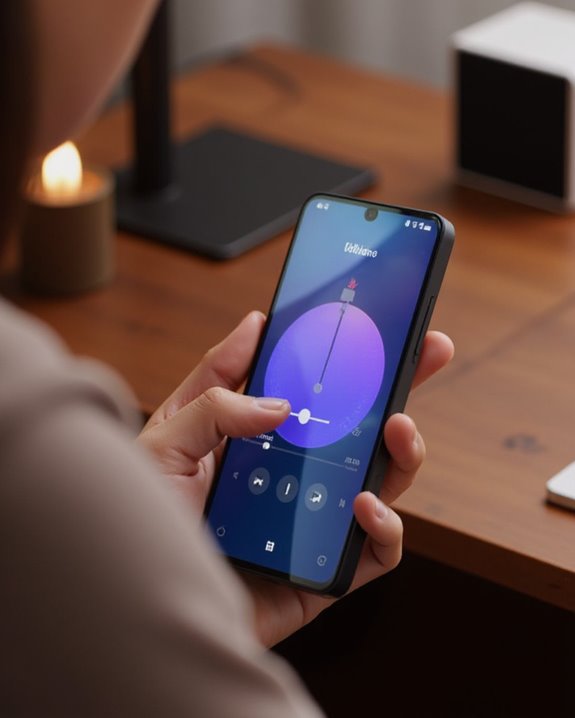
Diving deeper into Android’s audio capabilities requires accessing system-level settings that can dramatically enhance speaker performance beyond the basic hardware controls. Users can navigate to Sound & Vibration or Sound & Notifications in the Settings app, where they can increase volume by dragging the Ringtone and Media sliders to the right, optimizing audio for calls and entertainment.
For substantial volume enhancement, Android offers advanced options through Engineer Mode, accessible by dialing *#*#3646633#*#* in the phone app. Within Hardware Testing > Audio, users can modify specific parameters, including changing [sph] level 6 value from 136 to 155 and level 5 from 124 to 140. These adjustments have proven effective, with users reporting considerably louder output and more natural voice quality during daily use. If you also use a desktop setup, understanding whether your monitor has built-in speakers can help you decide whether to route audio through your display or rely solely on your phone or external speakers.
Recommended Products
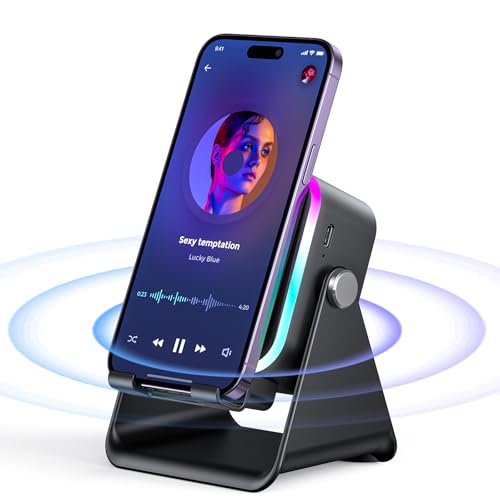
Induction/Bluetooth Speaker: Features two modes! Induction mode breaks the limitation of only playing through Bluetooth, lets you play music instantly by placing your phone on the stand—no Bluetooth needed. The Bluetooth mode equipped with cutting-edge Bluetooth 5.3 for a stable. Enjoy crisp, powerful sound with deep bass, tight mids, and crystal-clear highs. Perfect for music lovers!

Plug and Play Connectivity: Easy to connect the music amplifier to your electronic equipment via the 3.5mm audio jackno complex setup required. Enjoy sound amplification instantly
Cleaning and Maintaining Your Device Speakers
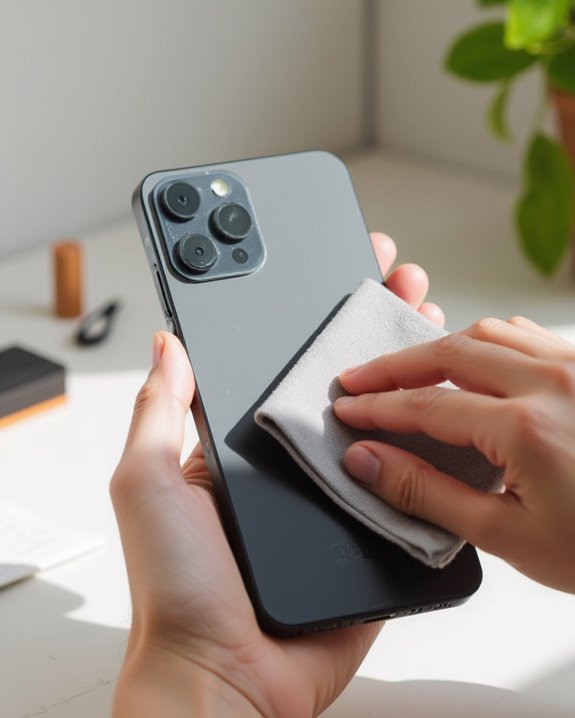
Even though your device’s software settings can substantially boost volume, the physical condition of your speaker components plays an equally critical role in delivering ideal audio performance. Regular inspection of speaker grills on Android devices reveals that dust or debris accumulation frequently causes muffled sound and reduced volume output.
Users should implement a maintenance routine that includes gentle cleaning with a soft brush to remove particles lodged within speaker openings. This simple procedure often restores clarity and maximizes volume potential without requiring software adjustments. Additionally, checking for physical obstructions, such as protective cases that inadvertently cover speaker outlets, prevents unnecessary audio dampening. Proper speaker maintenance not only improves immediate sound quality but also contributes to the longevity of the audio hardware, ensuring consistent performance throughout the device’s operational lifespan.
Accessing Hidden Audio Settings Through Engineer Mode
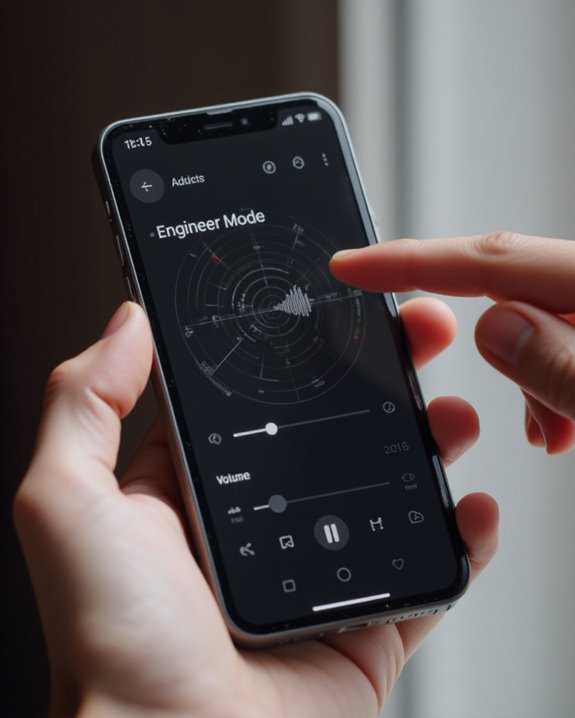
The Normal Mode section under Audio settings contains [sph] and [sph2] configurations that can greatly increase volume output. Specific adjustments include changing level 6 from 136 to 155, level 5 from 124 to 140, level 4 from 112 to 125, and level 3 from 100 to 110. Additional modifications to Speech Enhancement parameters, such as altering parameter 7 from 64 to 96, further optimize audio performance without risking speaker damage.
Adjusting Audio Enhancement Parameters
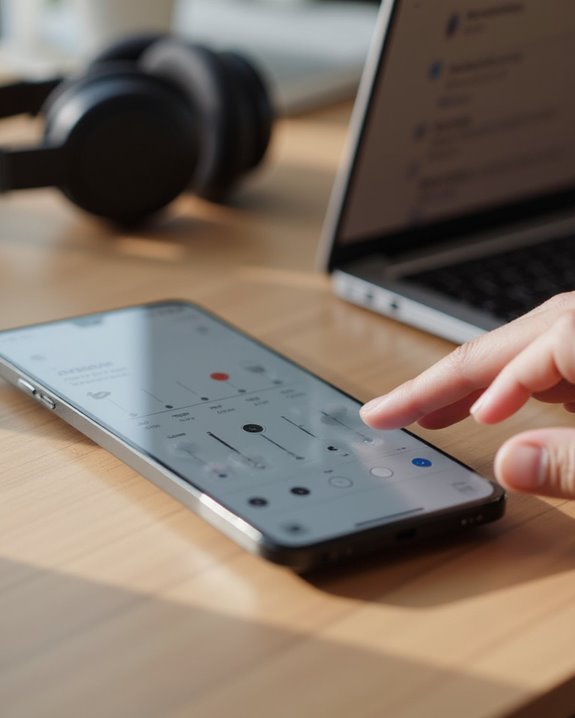
Within the [sph] settings, specific adjustments can dramatically enhance speaker output: increase level 6 from 136 to 155, level 5 from 124 to 140, level 4 from 112 to 125, and level 3 from 100 to 110. These identical modifications should be replicated in the [sph2] section for thorough audio enhancement. For further refinement, users should access Speech Enhancement, set Common Parameter to Normal Mode, and modify parameter 7 from 64 to 96 for improved volume, while adjusting parameter 6 from 400 to 300 for enhanced bass response.
Recommended Products

Superior Sound Reproduction - Experience immersive audio with KENWOOD Car Stereo Speaker KFC-1666S, featuring 6-1/2" 2-way speakers, delivering impressive clarity and powerful bass.
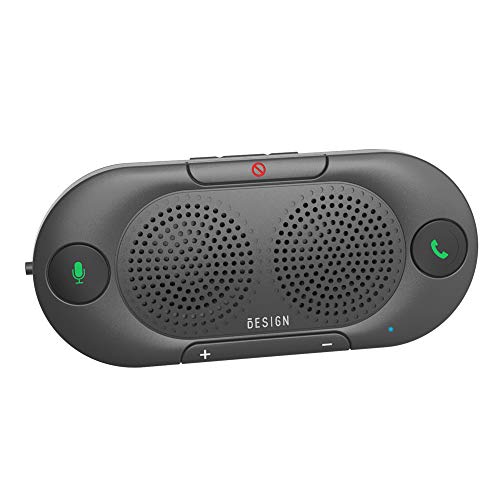
BLUETOOTH V5.0 and Long Working time: The latest Bluetooth 5.0+EDR technology provides lower power consumption and wider compatibility.

【CAR PHONE SPEAKER HANDSFREE】Built-in 3W microphone, based on excellent noise reduction and echo processing technology, will give you clearer call quality and more pleasant music, making your car journey full of fun and safety. The magnetic back clip makes it easy to mount on the car's sun visor. NOTES: Please use a normal plug. If you use fast charging for a long time, the charging IC may be damaged
Installing and Using Volume Booster Applications
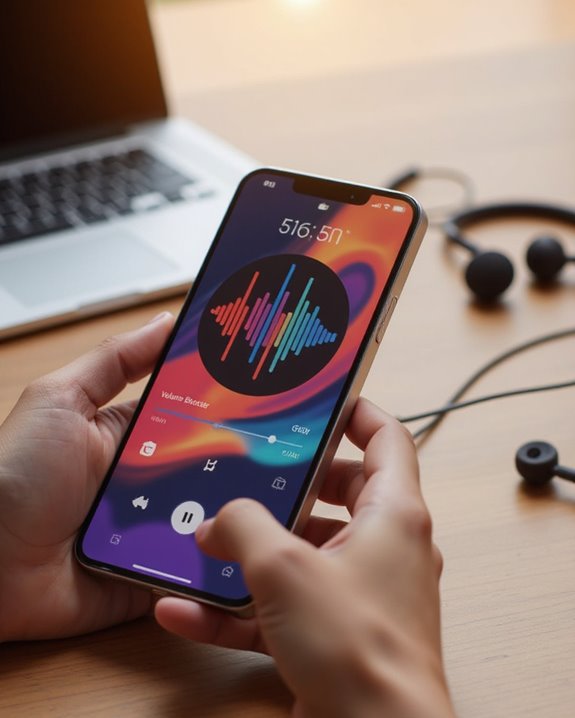
While manual system adjustments offer significant audio enhancements, many Android users prefer a more straightforward approach through dedicated volume booster applications. The installation process begins by accessing the Google Play Store, searching for “Volume Booster,” and selecting a highly-rated option such as Volume Booster by GOODEV, which boasts over 50 million downloads and a 4.5-star rating.
After installation, users must grant necessary permissions to enable notification access for convenient volume control. The application interface typically features two primary sliders: one for system volume adjustment and another for amplification, potentially increasing output up to 200%. For best performance, users should fine-tune settings by tapping the appropriate mode for specific activities like media playback. When finished, tapping the Stop Service button prevents battery drain and potential audio complications.
For users with Alexa devices, combining volume boosters with sound quality optimization techniques from the Alexa manual can provide an even better listening experience.
Recommended Products

【Boost Your Signal】-- The cell booster can be used without registering with the carrier. Enjoy fewer dropped calls, incredibly fast data speeds, better voice quality and worry-free streaming through ZORIDA signal booster with 72dB max gain. Enhance the signal in rural areas, home, cabin, shop, office, building, warehouse, basement or garage. Higher gain helps save your battery life of phones on standby mode. (Please ensure you have the 1-2 bars signal outside of your home before using)

Increase the extra volume

Download it now! Unleash the power of sound. Let the sound completely break through the limits of the system, and let your ears enjoy the charm of sound to the fullest! 🎵
Connecting to External Audio Devices for Amplification
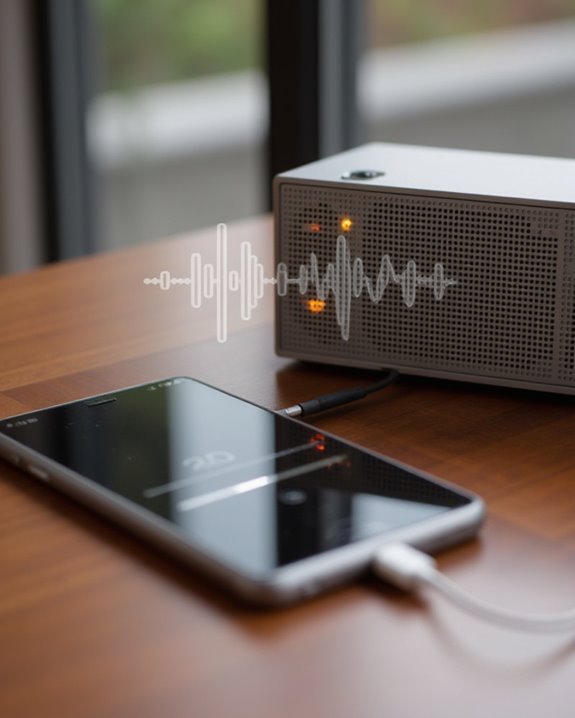
Connecting external audio devices presents the most effective solution for Android users seeking substantial volume improvements beyond what software adjustments can provide. Bluetooth-enabled speakers, which can deliver up to three times the volume of built-in speakers, can be easily paired with any Android phone through the device’s Bluetooth settings menu.
For users preferring wired connections, the 3.5mm headphone jack found on many Android devices allows direct connection to stereo systems or amplifiers, providing enhanced clarity and volume during media playback. Alternatively, the phone or tablet’s USB port can link to compatible external sound systems for powerful audio output. These external options not only amplify sound greatly but also reduce strain on the device’s internal speakers while delivering richer bass and improved instrument separation.
Among the top recommendations are Bluetooth speakers that offer both wireless and wired connectivity, such as the JBL GO2 for its portability and aux input capabilities.
Recommended Products

Outdoor-Proof Speaker: Portable design with IPX7 waterproof protection to safeguard against splashes, waves, and water vapor. Get incredible sounds at home, on camping trips, or for outdoor adventures.

90W Peak 50W HD Sound & Punchy Bass: Featuring 2 x 25W subwoofers and double passive bass radiators for producing super punchy bass, along with 2x5W advanced tweeters for HD sound, this loud Bluetooth speaker delivers 90W Peak 50W RMS surround sound and pumps out well-balanced midrange, crisp treble, and deep bass with virtually no distortion, letting you enjoy the music to the utmost. Hollow and sturdy cover of radiators do not isolate sound, the loud Bluetooth speaker is better protected

Ultra-Lightweight & Portable: Incredibly 0.66lb light! With a detachable lanyard. Small and portable bluetooth speakers for outdoor, workouts, or daily commutes. Take it anywhere effortlessly!
Safety Considerations When Increasing Volume
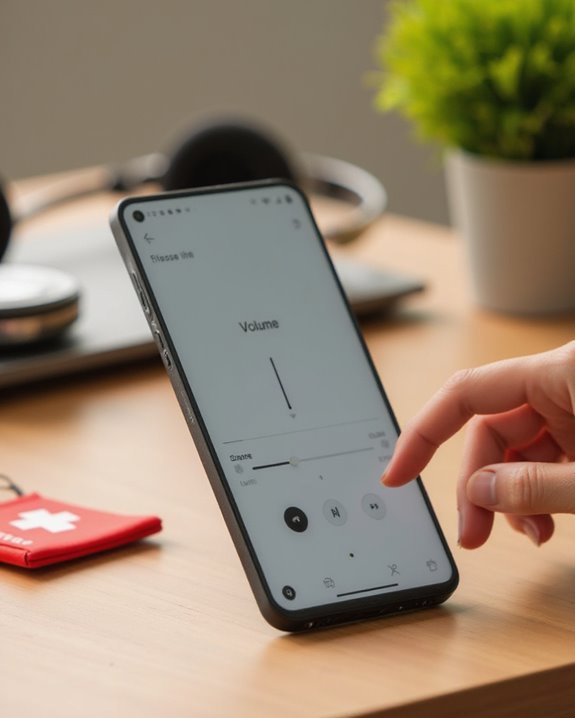
The pursuit of louder audio comes with significant risks that Android users should carefully weigh before implementing volume-boosting methods. Volume booster apps, despite their popularity and high ratings, can potentially damage both hearing and device speakers when used improperly. Users should limit boosted volume sessions to short durations and monitor for audio distortion, which often signals impending damage to internal components.
Built-in Android speakers have inherent limitations that, when exceeded, can lead to permanent hardware failure. Those seeking amplification should exercise particular caution with headphones, as the direct sound delivery greatly increases hearing damage risk. When distortion becomes noticeable, users should immediately tap Stop Service in their volume booster app and return to standard volume levels. These precautionary steps help preserve both audio equipment functionality and long-term auditory health.
Troubleshooting Common Audio Problems on Android
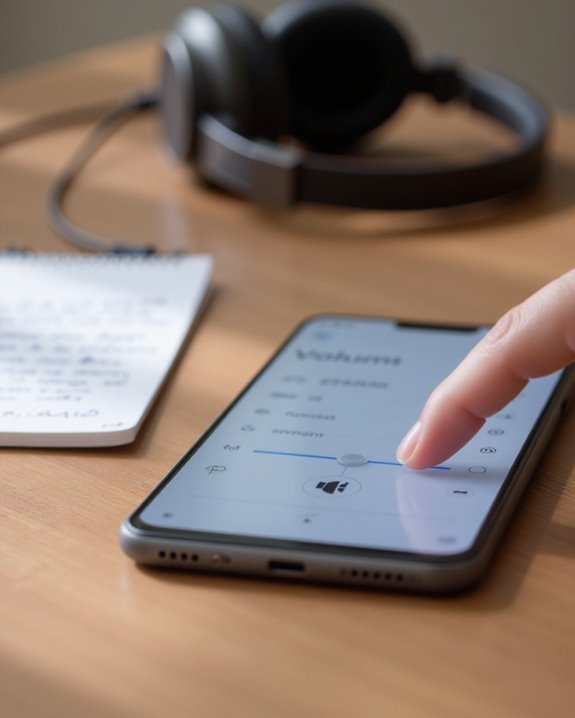
Many Android users encounter audio problems that compromise their device’s sound quality and volume capacity. When speakers produce muffled sounds, inspecting and cleaning the speaker grill with a soft brush can remove dust or debris that impedes audio performance. For distorted output, rebooting the device or cleaning the microphone hole eliminates potential software glitches and physical obstructions affecting clarity.
To Increase Your Android volume when experiencing low sound levels, users should first check for physical blockages and perform routine maintenance to clear accumulated dust. Advanced troubleshooting includes accessing Engineer Mode by dialing *#*#3646633#*#* and adjusting [sph] level values from 136 to 155 for level 6. While there are apps available for volume enhancement, users should exercise caution, as volume boosters that amplify sound up to 200% can potentially damage speakers permanently.
Alternative Methods to Enhance Sound Quality
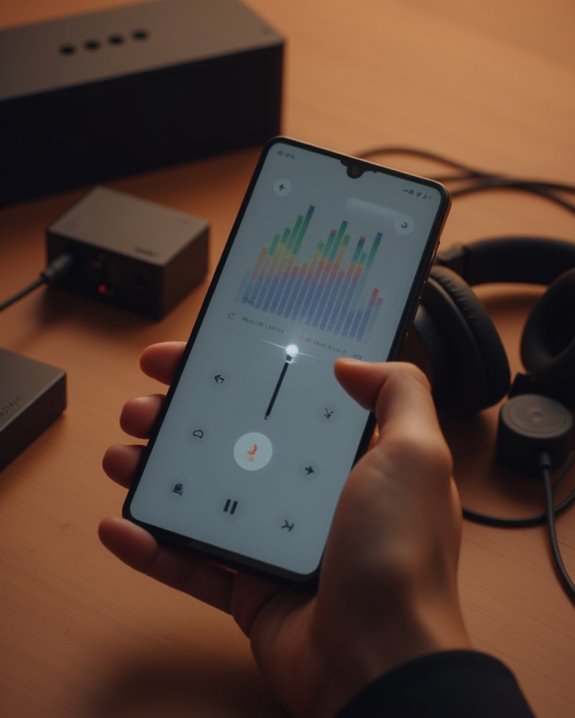
Android users seeking improved audio performance can explore several effective alternatives beyond standard volume controls, each offering distinct advantages for sound enhancement. Connecting external Bluetooth speakers provides richer bass and improved instrument separation, delivering audio quality that surpasses built-in phone speakers. Users can also use the Volume Booster app from Google Play, which offers up to 200% increased output while maintaining sound clarity with its 4.5-star rated performance.
For more technical enthusiasts, accessing Engineer Mode through the *#*#3646633#*#* dialer code enables advanced audio parameter adjustments, including changes to [sph] settings that greatly enhance volume and voice quality. Additionally, utilizing external audio connections through 3.5mm headphone jacks connected to stereo systems amplifies sound while preserving audio fidelity, creating a superior listening experience with minimal distortion. Those who use their Android device alongside a computer workstation may also want to check whether their monitor has built-in speakers, since pairing the right display with optimized Android audio can create a well-rounded multi-device audio setup.
Frequently Asked Questions
How to Increase Speaker Volume on Android?
Android users frantically seek volume salvation while ignoring App Permissions prompts. One can adjust Sound settings, download Volume Booster apps, connect Bluetooth speakers, or perform System Updates to enhance their audio experience.
How to Amplify Sound on Android?
Users can amplify Android sound by adjusting system volume settings, installing Audio Apps with volume boosters, connecting external Bluetooth speakers, accessing Engineer Mode, or enabling Noise Reduction features. These methods enhance audio without risking speaker damage.
How Do I Make My Speaker Volume Higher?
Users can increase speaker volume through system settings, specialized apps, or external Bluetooth speakers. However, exceeding recommended levels poses Health Risks to hearing. Various Accessory Options like amplified speakers provide safer alternatives for sound enhancement.
How to Fix a Low Volume Speaker on Android?
With speakers that whisper like a ghost, proper Speaker Maintenance is essential. Users should clean the grill, adjust system volume settings, use booster apps, modify Engineer Mode settings, or connect external Bluetooth speakers for Audio Troubleshooting.