As an Amazon Associate, we earn from qualifying purchases. Some links may be affiliate links at no extra cost to you. Although our opinions are based on curated research, we haven't used these products. Articles generated with AI.

How to Connect a Speaker With Bluetooth in 5 Easy Steps

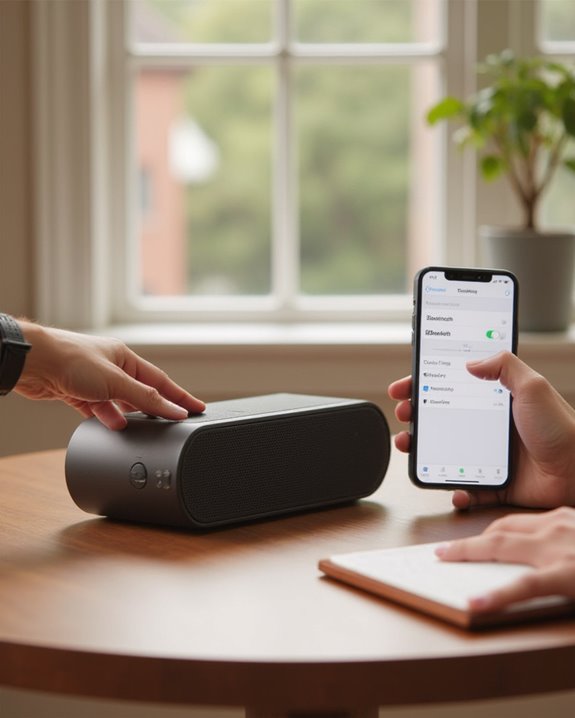
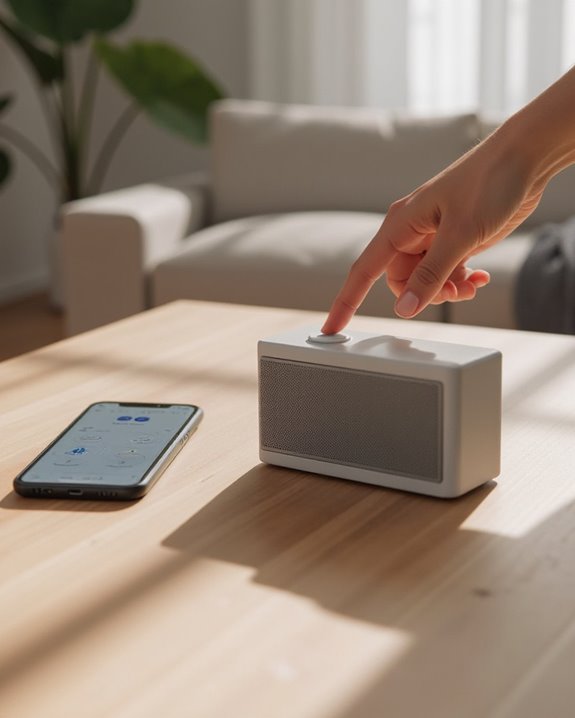
Connecting a Bluetooth speaker requires five simple steps: First, activate pairing mode on the speaker by pressing the Bluetooth or power button until indicators flash. Next, access Bluetooth settings on your device through Settings or Quick Access panels. Then, scan for available devices while making sure the speaker remains in pairing mode. Select the speaker’s name from the device list to establish connection. Finally, test the connection by playing audio and verify proper functioning. The complete process guarantees reliable wireless audio transmission for everyday enjoyment.
Key Takeaways
- Put your Bluetooth speaker in pairing mode by pressing and holding the power or Bluetooth button until you see flashing lights.
- Access Bluetooth settings on your device by opening Settings on iPhone or swiping down on Android.
- Scan for available devices while ensuring your speaker is within 30 feet of your phone.
- Select your speaker from the list of available devices and enter a passcode if prompted.
- Verify the connection by checking that your speaker shows as “connected” and test by playing audio.
Putting Your Bluetooth Speaker in Pairing Mode
Activating pairing mode represents the essential first step when connecting any Bluetooth speaker to a device. The specific method to put a Bluetooth speaker into pairing mode varies by model, making it important to consult the speaker’s manual for precise instructions. For most speakers, users need to press and hold the power button or dedicated Bluetooth button until they hear a sound or see a light flashing, indicating pairing readiness.
Some models require a quick press of the Bluetooth device button, while others need users to hold the button for several seconds. Before attempting to activate pairing mode, make sure the speaker has sufficient battery charge, as low power can prevent proper functionality. The speaker typically confirms successful entry into pairing mode through visual indicators like blinking LEDs or audible prompts. Additionally, many modern speakers utilize Bluetooth 5.0 for enhanced connectivity and range during the pairing process.
Recommended Products
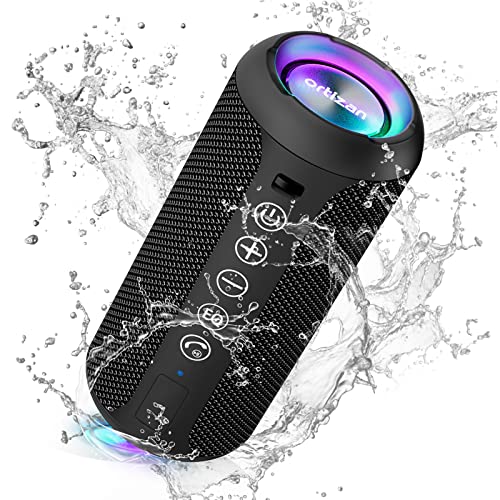
Hi-Fi Stereo Sound and Dual Pairing: Ortizan Bluetooth speaker equips with a 24W(2 x 12W) of stereo audio drivers speaker, an advanced digital signal processor, and two passive radiators for outdoor bass boost, which pumps out crisp treble, detailed mids, and specially enhanced bass at any volume. You can purchase two speakers at the same time to truly enjoy the surround sound of a movie theater by using the Dual Pairing function, which is an auditory experience that's truly unparalleled.

120W High-Power Indoor and Outdoor Speaker - Provides premium dynamic sound over 4 speakers - 8" woofer, 2" tweeter and two 4" drivers deliver wide-range sound to the front, left and right of the speaker
Accessing Bluetooth Settings on Your Device
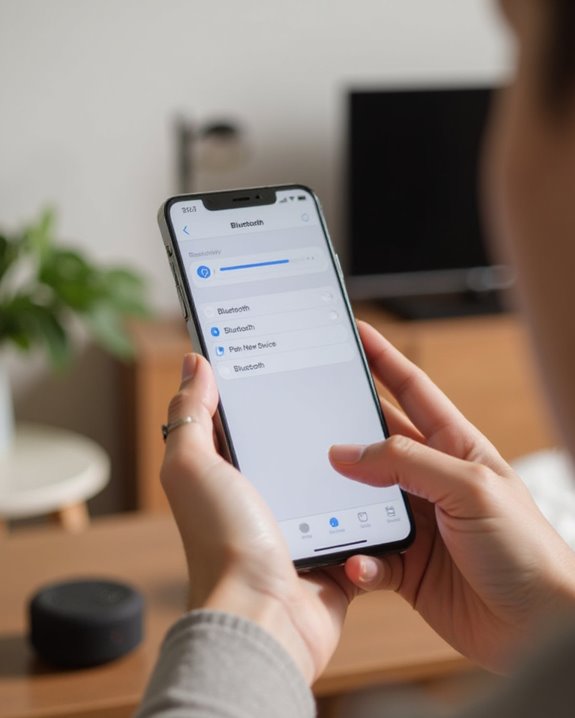
After putting the Bluetooth speaker in pairing mode, users need to locate the Bluetooth settings on their device to complete the connection process. The method varies depending on the type of device being used.
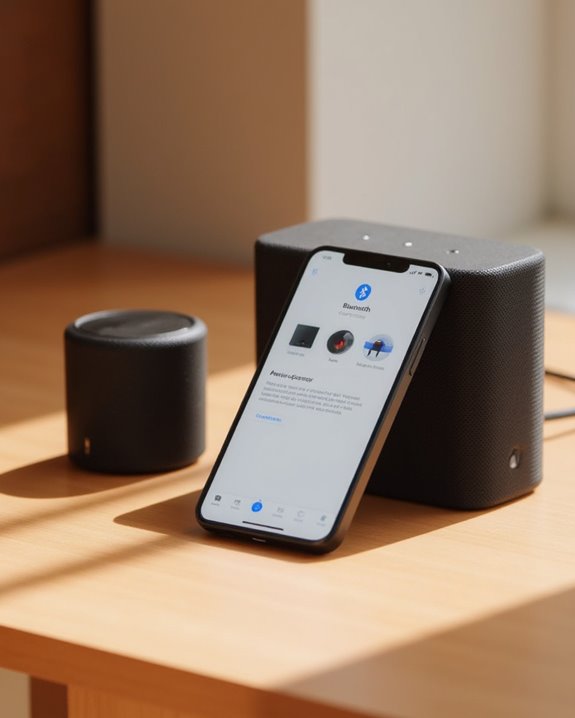
On iPhones, users can access Bluetooth settings by opening the Settings app and selecting the Bluetooth option. For Android phones, there are multiple access points. Users can swipe down from the top of the screen to open Quick Settings, where the Bluetooth icon typically appears among the top options. Alternatively, Android device owners can swipe down twice or use two fingers to reveal the full Quick Settings panel, then tap or hold the Bluetooth icon to turn on Bluetooth. Android users can also navigate through the main Settings app to locate the Bluetooth section for a more detailed view of available devices. If you need a broader overview of the full pairing process, our guide on how to connect a Bluetooth speaker in 7 easy steps covers every detail from powering on to audio testing.
For enhanced connectivity, ensure your device supports Bluetooth 5.4 to achieve extended range and seamless pairing.
Recommended Products
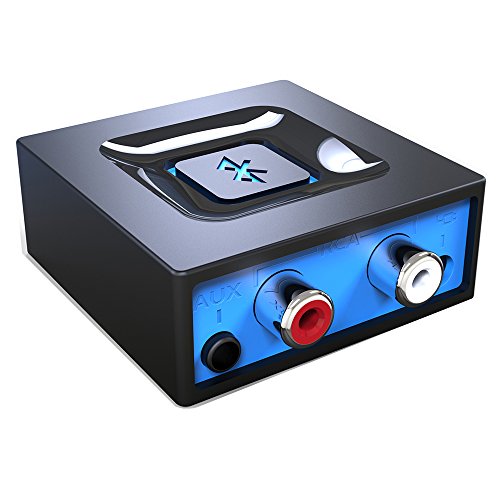
Listen music wireless: Connect with computer speakers, home stereo systems or other speaker systems via the 3.5 mm or RCA cable, then pair with the Bluetooth audio devices such as smartphones or tablet for streaming music.

【For PS5 Users Only】 Specifically designed for PS5 to connect Bluetooth headphones (e.g., AirPods, Bose, & more) for audio playback. For optimal voice chat experience, please use the PS5 controller microphone instead of headphone mics.

[Drive & Listen Wirelessly, Universal Compatibility] Seamlessly connect to non-Bluetooth car audio systems, home stereos, speakers and wired headphones via the 3.5mm AUX adapter. Equipped with advanced Bluetooth 5.3 chip, it ensures stable connection, fast transmission and wide signal range—no more intermittent audio during driving or listening. Pair with your phone in 3 seconds and enjoy your favorite music, podcasts or audiobooks anytime, anywhere.
Scanning and Finding Available Speakers
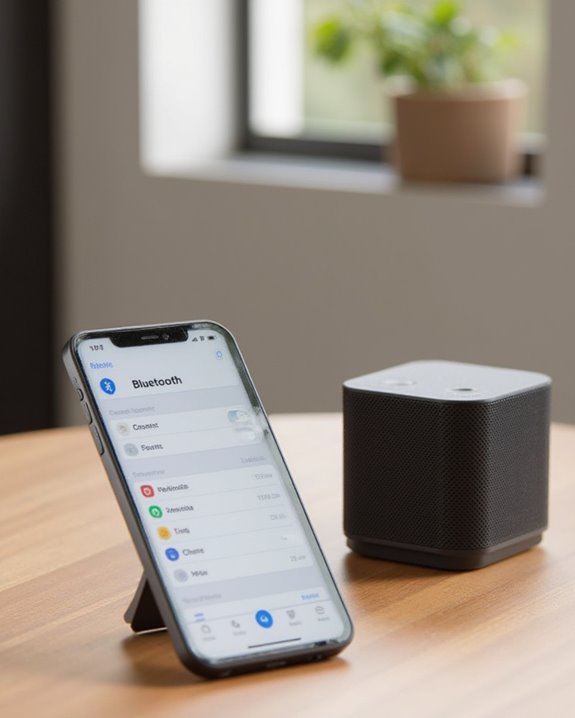
Once Bluetooth is enabled, users must scan for and locate their speaker within the device’s Bluetooth menu. To initiate this process, users should tap the refresh or scan option, often represented by three vertical dots in the settings on your phone, which prompts the system to search for nearby devices. During this scanning phase, it’s crucial to verify the Bluetooth speaker is in pairing mode, typically indicated by flashing lights or audio cues, making it discoverable to other Bluetooth devices.
The scan generates a list of available devices within range, displaying device names and signal strength information. If the Bluetooth speaker doesn’t appear in the list of devices, users should verify proximity (within 30 feet), refresh the scan multiple times, and confirm the speaker remains in pairing mode throughout the pairing process.
For better connectivity during scanning, consider speakers that support Bluetooth 5.3 for extended range and more reliable detection.
Recommended Products

【Compact Portable Metal Speaker】This portable speaker is made of Aluminum Alloy with lanyard. Mini,small size and lightweight, You can enjoy music with this pink wireless Bluetooth speaker outdoor,indoor, office, car or bike.

Ultra-Lightweight & Portable: Incredibly 0.66lb light! With a detachable lanyard. Small and portable bluetooth speakers for outdoor, workouts, or daily commutes. Take it anywhere effortlessly!

Engineered with premium craftsmanship, this portable speaker features a space-saving form measuring a mere 2.99 inches (7.6 cm) in width and length, and 4.25 inches (10.8 cm) in height. Ultra-lightweight at just 0.582 lbs (264g), it slips effortlessly into any bag. Driven by a robust 20W peak power, it delivers immersive audio with punchy bass and crisp highs, while its 15W continuous output ensures crystal-clear sound for indoor relaxation or outdoor adventures
Completing the Connection Process
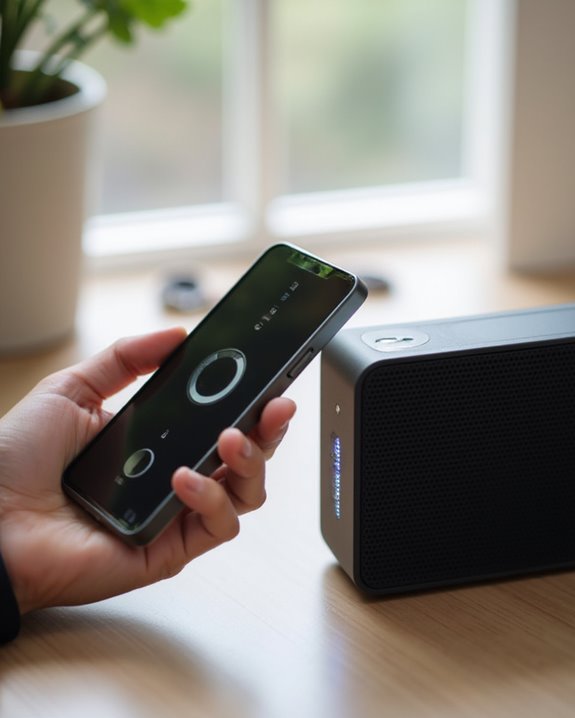
Selecting your Bluetooth speaker from the list of available devices initiates the final connection process, which transfers audio control from your device’s internal speakers to the external Bluetooth speaker. During this pairing stage, users may encounter a passcode prompt, which typically requires entering common codes like 0000 or 1234 to establish the Bluetooth connection.
After selection, verify that the speaker appears in the connected devices list; if not visible, updating the scan can help detect the device. The connection is complete when the speaker shows as “connected” in the Bluetooth menu, enabling sound to play immediately through the external speakers. Once successfully paired, most devices will connect automatically when using Bluetooth in the future, eliminating the need to repeat all pairing steps each time. This convenient feature activates whenever both devices are powered on and within range. For brand-specific guidance, see our dedicated walkthrough for pairing a JBL Bluetooth speaker, which walks through PartyBoost and app features as well.
Recommended Products

OMNIDIRECTIONAL SOUND IN A SMALL PACKAGE: X26M small speakers are designed to deliver balanced, detailed sound in a 360° radius. A built-in amplifier powers the speaker for full sound. It offers a rich sound and an enhanced bass that goes far beyond its size. PAIR TWO SPEAKERS FOR STEREO SOUND : For an immersive music and media experience, you can connect two x26m mini portable speakers to set up stereo sound. Easy click to operate without hassle.

BRILLIANT SOUND: SOWO speaker Bluetooth wireless based on advanced DSP technology, equipped with 25W stereo audio drivers and two wide bass passive radiators,which perfectly achieves stereo sound effect and high volume output
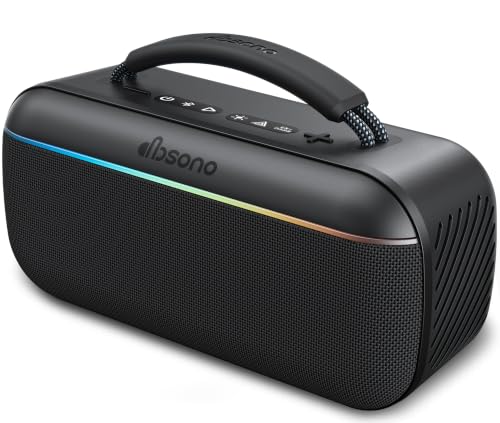
100W Peak / 60W RMS Powerful Stereo & Enhanced Bass: Fill any space with rich, powerful stereo sound driven by up to 100W Peak and 60W RMS output. A 30W Peak / 20W RMS tweeter delivers crisp highs, while dual 35W Peak / 20W RMS woofers produce deep, punchy bass. Press the BASS Boost button for instantly enhanced low frequencies, and enjoy greater depth and impact from the custom racetrack woofer
Testing and Troubleshooting Your Connection
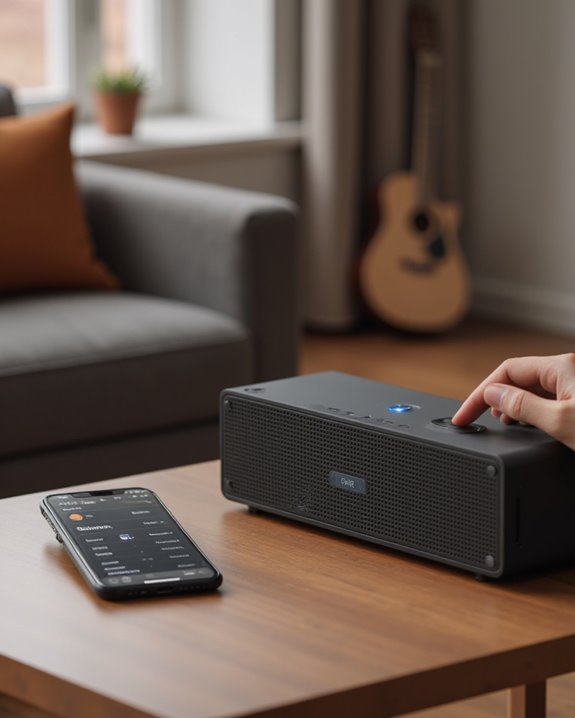
Successfully establishing the Bluetooth connection opens the door to the equally important step of verifying that the connection functions properly. After users connect their Bluetooth speaker, they should play audio on their phone to make sure the speakers work correctly, confirming both connection stability and sound quality. If users can’t find their device or experience poor audio, several troubleshooting steps exist as outlined in this article.
Common issues include speakers not being in pairing mode (indicated by flashing lights), devices being out of the 10-meter Bluetooth range, or conflicting connections with other headphones and speakers. For persistent problems, users should reset their device according to manufacturer instructions, which typically involves holding down a reset button until confirmation appears. Additionally, verify that the speaker doesn’t support Bluetooth connections to multiple devices simultaneously, as this can cause interference.
Recommended Products

【Bluetooth Speaker DIY Kit】No soldering iron, Our Kits include laser-cut wooden components,2 pcs Subwoofer 2 inch 4 ohm 3 w Full Range Speaker, Dual Channel Bluetooth Amplifier Board, Clear&Simple Instructions, It needs to be powered by 4 batteries (not include) when using, and it can be connected to the mobile phone or computer

[Soldering practice kit, need to solder and assemble by yourself] This soldering practice kit is a speaker that supports a variety of playback methods when completed. Blutoth connection: allows you to easily play music from your phone or tablet.AUX port: allows you to connect other audio devices and enjoy more music sources.USB-disk and TF card slot: allows you to plug in your storage device and play your favorite songs anytime.

Discover How Speaker Works: This DIY Bluetooth Speaker STEM Kit allows kids to explore the science of sound and music through hands-on assembly; No soldering required, easy to build, and suitable for boys aged 8-12; It enhances creativity and scientific thinking, making it a strong choice for STEM education
Frequently Asked Questions
How to Connect Speaker With Bluetooth?
Bluetooth pairing requires device discovery on both speaker and phone. Users should check speaker compatibility, wireless range, and connection stability. Signal interference may affect audio quality. Some speakers offer firmware updates and app integration for enhanced battery life.
How Do I Connect to Bluetooth Step by Step?
One might think Bluetooth pairing requires advanced engineering. Simply enable discovery mode on your device, navigate to Bluetooth settings, select the device for wireless setup, and confirm device linking when prompted. Phone integration complete.
How Do I Connect 5 Bluetooth Speakers?
Connecting five Bluetooth speakers requires multi speaker syncing through group pairing or stereo link features. Users establish a wireless chain or audio mesh by enabling the device cluster functionality, creating a Bluetooth array for surround network or party setup.
Why Is My Speaker Not Connecting via Bluetooth?
Miraculously, technology fails when needed most. Bluetooth speakers disconnect due to pairing failures, device conflicts, compatibility issues, signal weakness, interference causes, software bugs, firmware problems, battery drain, hardware defects, or simple connection errors requiring troubleshooting.