As an Amazon Associate, we earn from qualifying purchases. Some links may be affiliate links at no extra cost to you. Although our opinions are based on curated research, we haven't used these products. Articles generated with AI.

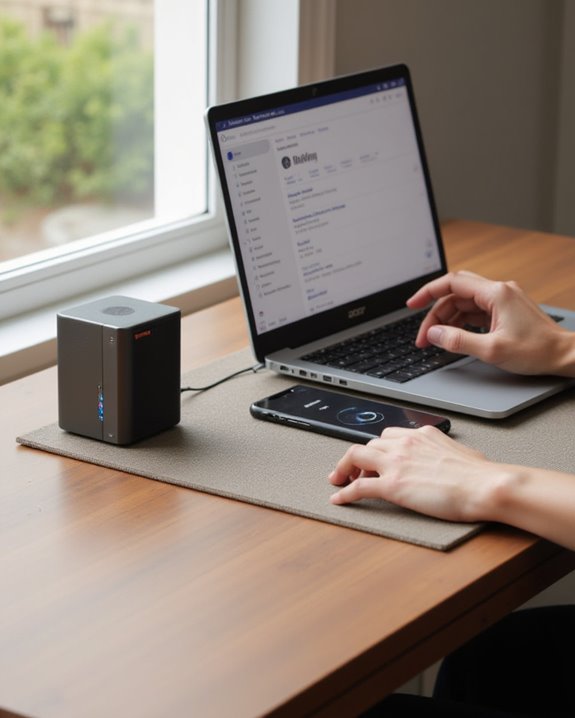
How to Connect Acer Laptop to Bluetooth Speaker in 10 Easy Steps

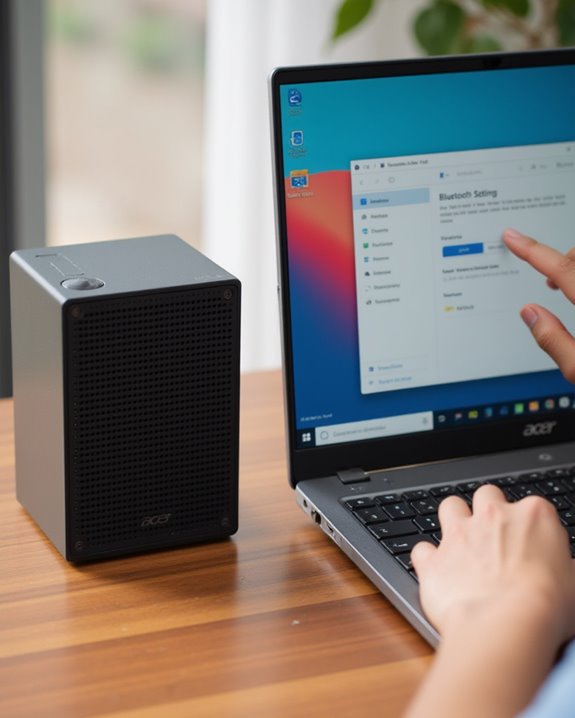
Connecting an Acer laptop to a Bluetooth speaker requires a few simple steps. First, make sure Bluetooth is enabled on the laptop through Settings > Bluetooth & devices. Next, put the speaker in pairing mode by pressing its designated pairing button. Select “Add device” on the laptop, choose the speaker from the list, and click “Pair.” Once connected, set the speaker as the default audio output through Sound settings. Test the connection by playing audio through the newly paired device. Following these instructions guarantees seamless wireless audio enjoyment.
Key Takeaways
- Enable Bluetooth on your Acer laptop through Settings > Devices > Bluetooth & devices or the system tray.
- Turn on your Bluetooth speaker and activate pairing mode (usually by pressing/holding a dedicated button).
- Click “Add device” in Windows Bluetooth settings and select your speaker from the available devices list.
- Set the connected speaker as your default audio device through the sound settings in Windows.
- Test the connection by playing audio and adjust volume levels on both laptop and speaker as needed.
Check Bluetooth Compatibility on Your Acer Laptop
Before attempting to connect a Bluetooth speaker to an Acer laptop, users must verify that their specific laptop model supports Bluetooth technology. To confirm compatibility, owners should check their laptop’s specifications on Acer’s official website by entering the exact model number, such as the Aspire 5742, which often supports Bluetooth depending on configuration.
Users can verify Bluetooth capability by accessing Device Manager through right-clicking the Start button, then expanding the “Bluetooth” or “Network adapters” section to locate a Bluetooth adapter listing. If no Bluetooth device appears, the laptop may require external hardware or driver installation. Windows offers a built-in Bluetooth troubleshooter that can diagnose connection issues before attempting to Add device through the system settings menu. If you also want to connect a Bluetooth speaker to a Toshiba laptop, the compatibility check process is nearly identical — see our guide on connecting a Bluetooth speaker to a Toshiba laptop for comparison.
Additionally, for optimal performance with modern speakers, it’s advisable to ensure your laptop supports Bluetooth 5.4 to achieve better connectivity and extended range.
Recommended Products

Bluetooth 5.4 + Broad Compatibility - Provides Bluetooth 5.4 plus EDR technology and is backward compatible with Bluetooth V5.3/5.0/4.2/4.0/3.0/2.1/2.0/1.1.

Upgraded Bluetooth 5.3 Adapter: This bluetooth adapter for pc uses the latest upgraded Bluetooth 5.3 BR+EDR technology, greatly improves the stability of the connection data transfer speed, reduces the possibility of signal interruption and power consumption.
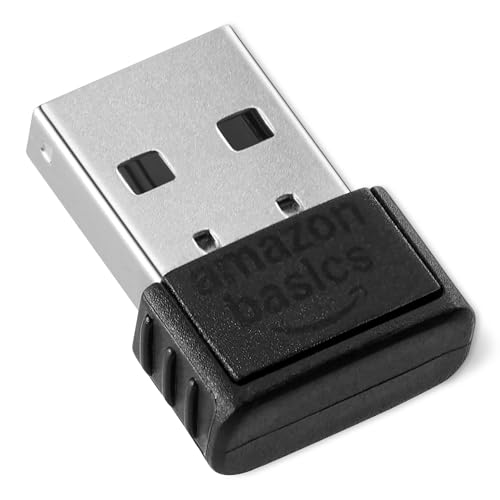
INSTANT BLUETOOTH ACCESS: Bluetooth dongle adapter receiver for PCs converts non-Bluetooth devices into Bluetooth-capable with simple USB connection
Power Up Your Bluetooth Speaker
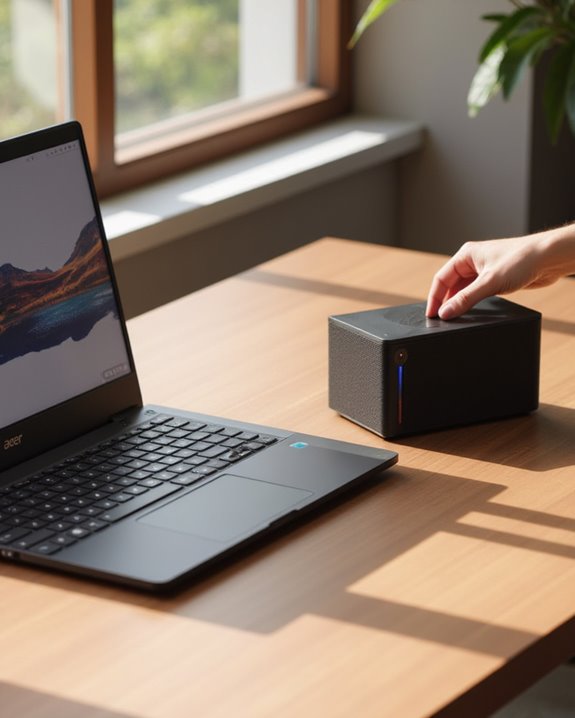
Powering on the Bluetooth speaker marks the essential first step in establishing a connection with an Acer laptop. Users should press the power button on their Bluetooth speaker, verifying it has adequate power before attempting to pair with the computer. For rechargeable models, a full battery charge prevents interruptions during the pairing process, while speakers requiring external power should be connected to a compatible electrical outlet.
Positioning the Bluetooth speaker within 30 feet of the Acer laptop guarantees ideal signal strength and minimizes potential connection issues. Once the speaker is powered on, users must activate its pairing mode according to the manufacturer’s instructions, typically indicated by a flashing light or audio signal. This pairing mode makes the speaker discoverable to the laptop, allowing the Bluetooth connection process to proceed smoothly in subsequent steps. If you’re looking for a quality speaker to pair with your laptop, our guide to the best portable speakers covers top-rated options across multiple price ranges that pair seamlessly with Windows devices.
Moreover, opting for a speaker with Bluetooth 5.0 can provide more stable connectivity and reduce the risk of pairing interruptions.
Recommended Products

【Compact Portable Metal Speaker】This portable speaker is made of Aluminum Alloy with lanyard. Mini,small size and lightweight, You can enjoy music with this pink wireless Bluetooth speaker outdoor,indoor, office, car or bike.
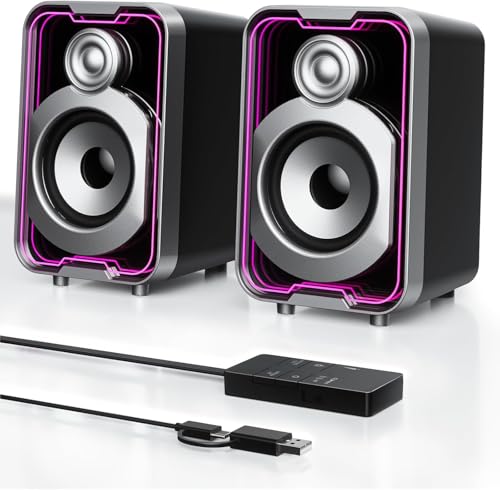
Mirrored Light Effects: The unique reflective design adds depth to the LED light strip through mirror-like reflections, creating amazing light trails that break traditional visuals. With 5 lighting modes, it enhances your gaming experience while adding a futuristic, personalized atmosphere to your desktop

USB and Bluetooth connectivity; connect to desktop or laptop with USB cable; connect to smartphone with Bluetooth 5.0
Put Your Speaker in Pairing Mode
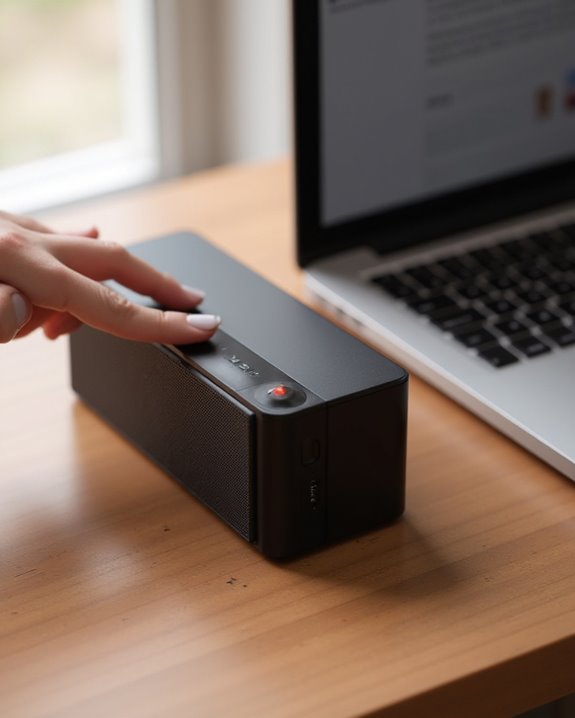
Activating pairing mode on a Bluetooth speaker represents the critical second step in connecting it to an Acer laptop. After powering on the device by pressing its power button, users must locate the designated Bluetooth or pairing button on their speaker. Most manufacturers configure their Bluetooth speakers to enter discovery mode when this button is pressed and held for several seconds, typically indicated by a flashing light or color change.
Speaker models vary greatly in their pairing procedures, making consultation of the product’s user manual essential for specific instructions. While in pairing mode, the speaker will remain discoverable for a limited time—usually a few minutes—providing sufficient opportunity to complete the connection process. For best performance, users should verify the speaker meets all operational requirements, including adequate battery charge and positioning within the standard 30-foot Bluetooth range. Additionally, for enhanced connectivity options, users might consider speakers with extended ranges, such as the 100-foot Bluetooth range of the OontZ Angle 3.
Recommended Products

120W High-Power Indoor and Outdoor Speaker - Provides premium dynamic sound over 4 speakers - 8" woofer, 2" tweeter and two 4" drivers deliver wide-range sound to the front, left and right of the speaker

Extreme Volume & Bass: Pump up the adventure with 105dB of powerful, distortion-free sound — built for the outdoors, whether you're on a boat, at a tailgate, or deep in the backcountry

【Multiple INPUTS】The stereo speakers home audio is built with RCA which ensure a lossless connection surround sound system for TV; With the addition of stable BT 5.3 technology, you can pair the bookshelf speakers with your smartphone or tablet in just 2 seconds, enabling wireless music playback without dealing with messy wires.3.5mm AUX audio can adapt to any device that has 3.5mm headphone or dual output. Various lined ways allow you to meet your various needs, whether you want to enjoy music, watch movies, or play games, without switching between different speakers.
Access Bluetooth Settings on Your Acer
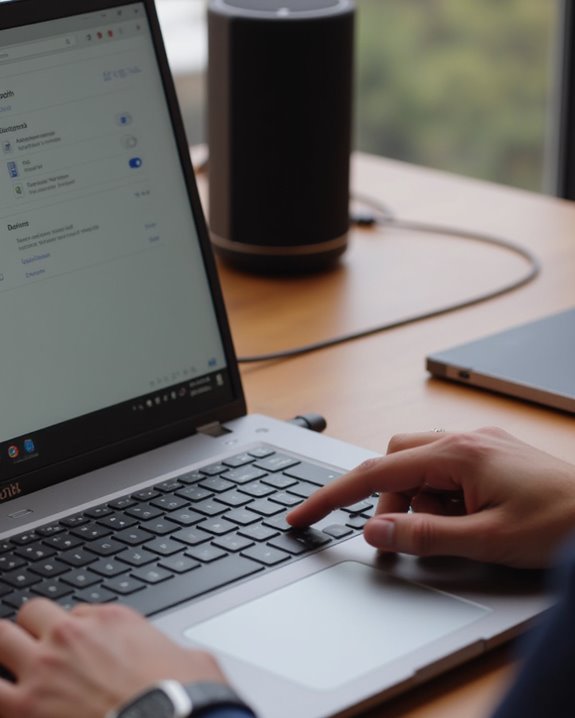
Accessing the Bluetooth settings on an Acer laptop requires accessing the Windows operating system’s central configuration hub. Users can navigate to these settings through multiple methods, each providing direct access to the Bluetooth devices interface.
The most efficient approach involves pressing the Windows key + I keyboard shortcut, which immediately launches the Settings application. From there, selecting “Bluetooth & devices” opens the management panel where all wireless connection options appear. Alternatively, users can click the Start menu, select Settings, and then navigate to the same Bluetooth section. Once this interface loads, the system displays currently paired devices and offers an “Add a device” window for new connections. The Bluetooth toggle switch at the top of this screen enables or disables the laptop’s wireless discovery functionality, a necessary step before establishing any speaker connection.
Recommended Products
![[Upgraded] Computer Speakers for Desktop PC, USB Plug-n-Play, External Speakers for Laptop, Mini PC Sound Bar with Stereo Loud Sound, Enhanced Bass, Compatible with Windows, macOS, ChromeOS, Linux](https://m.media-amazon.com/images/I/416h3bKRiuL._SL500_.jpg)
💻Compatible with Windows PCs -- The Upgraded USB Computer Speaker works great with various brands of Windows (7/8/10/11) PCs, such as HP, Lenovo, ThinkPad, ASUS, Dell, Samsung, Acer, LG or more.

Set of 2 Bluetooth/USB speakers for use with computers, televisions, laptops, and more (Note: Power by USB Cord, no build-in battery, Simply unplug the USB cord to power off)
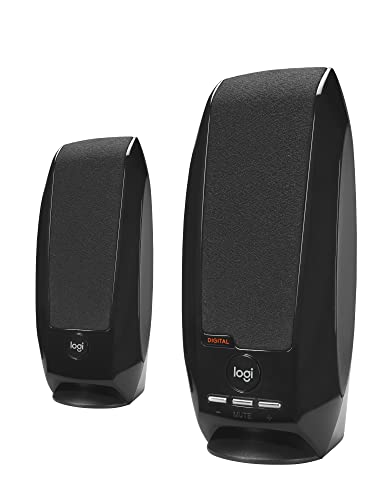
Balanced audio sound with depth - 2 Watts Peak/ 1.2 Watts RMS power produces immersive and crystal clear sound.
Turn On Bluetooth on Your Laptop
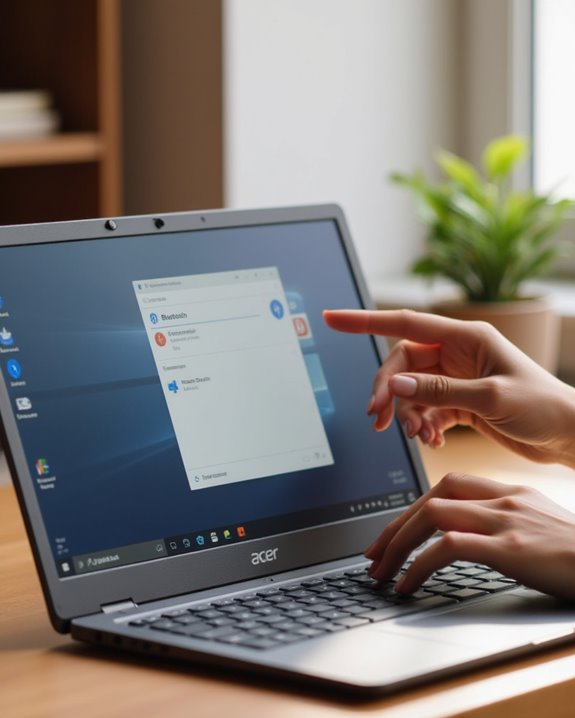
The next phase after locating your Bluetooth settings involves enabling the technology on your Acer laptop, a fundamental step before any external audio device can be connected. Within the Settings application, users should navigate to the “Bluetooth & devices” section, where the primary toggle control exists at the top of the interface.
To make sure Bluetooth is turned on, simply slide the toggle switch to the “On” position, causing it to change color and indicate activation. Windows 10 users specifically need to confirm that Bluetooth is switched on by checking that the slider appears in the enabled state under the Bluetooth & other devices section. After activation, make sure Bluetooth is functioning properly by looking for the Bluetooth icon in the system tray or attempting to pair with a nearby device.
Scan for Available Devices
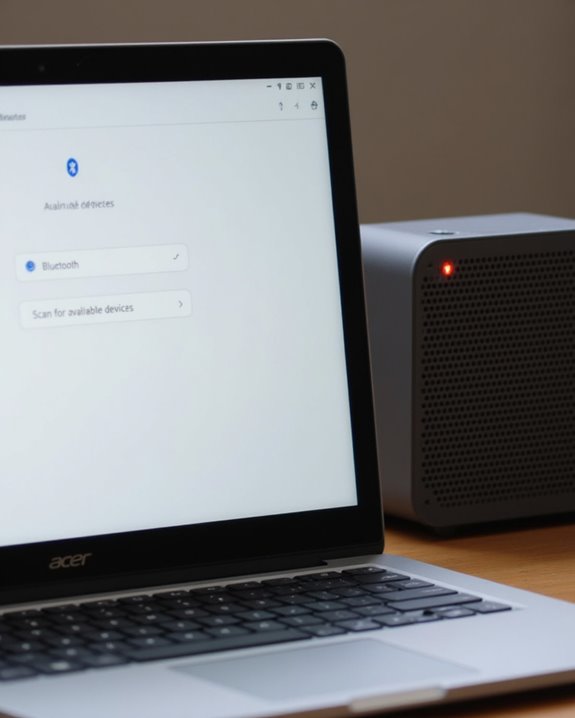
Once Bluetooth functionality has been activated on the Acer laptop, users must scan for available devices to establish a connection with their Bluetooth speaker. To initiate this process, users should open the Settings application by pressing Windows key + I, navigate to “Bluetooth & devices,” and select “Add Bluetooth device” to launch the scanning function.
The Acer laptop will display nearby discoverable devices within range, typically up to 30 feet from the computer. This scanning process generally takes 10-30 seconds, as the success depends on environmental factors and potential wireless interference. Users should make sure their Bluetooth speaker is in pairing mode during this scan, making it visible to the laptop’s adapter. If no devices appear in the list, users should verify that Bluetooth remains enabled and consider restarting the scan or updating drivers through Device Manager.
Select and Pair Your Speaker
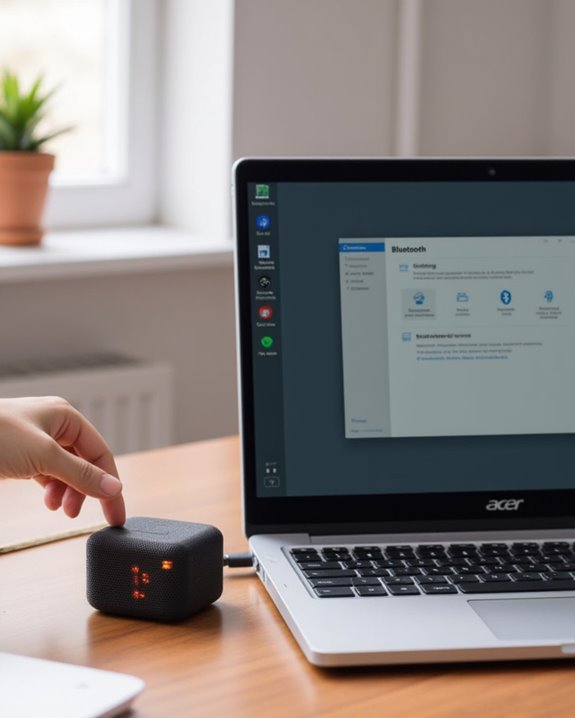
After identifying available Bluetooth devices through the scanning process, users must now select and pair their speaker with the Acer laptop to establish a functional audio connection. Once the speaker appears in the detected devices list, the user should click on its name and select the “Pair” button to initiate the connection sequence. The system will attempt to add the speaker to the list of connected devices, displaying a progress indicator during this process.
When prompted with on-screen instructions, users should follow any additional steps required to complete the pairing. Most speakers will be able to connect automatically after selection, but some may require a confirmation on the speaker itself or the entry of a pairing code. Once successfully paired, the Bluetooth speaker will appear under the “Audio” section in the connected devices list. If you want to pair multiple speakers at once from your laptop, refer to our guide on how to connect to more than one Bluetooth speaker for advanced multi-speaker setup options.
Set Speaker as Default Audio Device
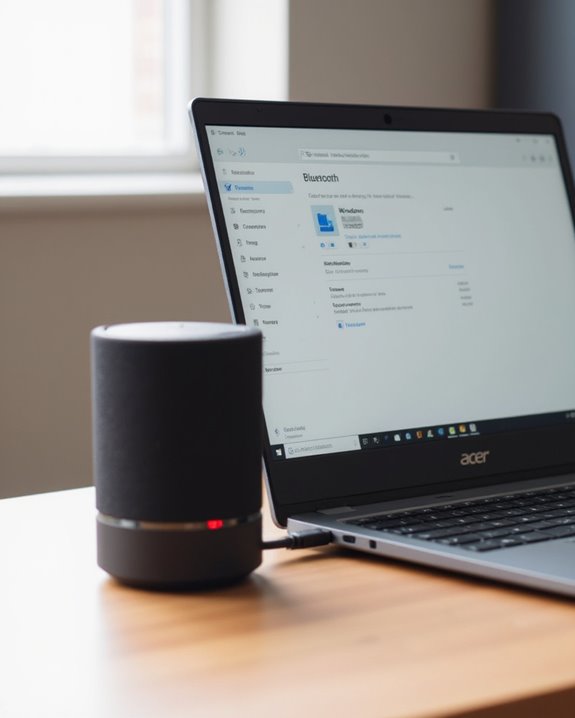
Successfully connecting a Bluetooth speaker to an Acer laptop requires designating it as the default audio device, which guarantees all system sounds and media playback route through the external speaker rather than the laptop’s built-in speakers.
To set a Bluetooth or other device as default, users should right-click the speaker icon in the system tray and select “Playback devices.” In the window that appears, locate the brand and model of the connected speaker, right-click on it, and choose “Set as Default Device.” Before finalizing this selection, verify that the speaker isn’t muted or disabled in the settings. The process may vary slightly depending on the device manufacturer. After configuration, users should adjust the volume slider and play a test sound to confirm proper functionality, ensuring audio now outputs through the Bluetooth speaker instead of internal speakers.
Test the Connection With Audio
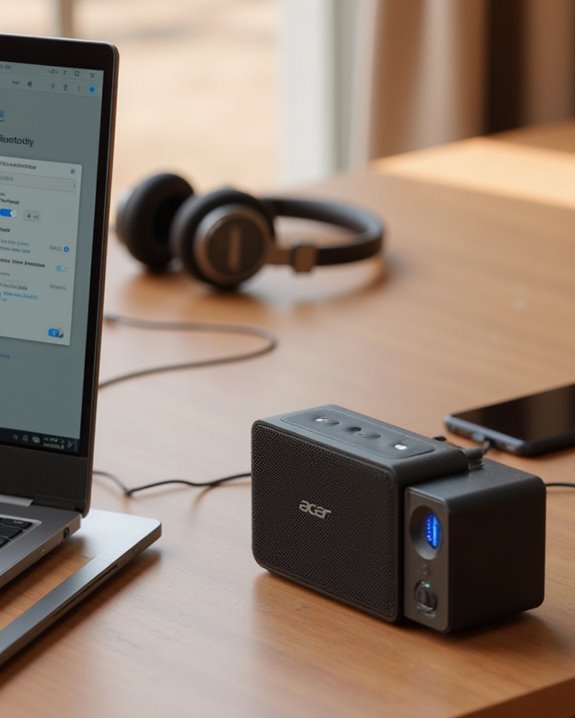
Verifying the audio connection between an Acer laptop and a Bluetooth speaker represents a critical final step in the setup process. After pairing is complete, users should play a test audio file to confirm sound is properly routing through the Bluetooth speaker rather than the laptop’s internal speakers. For first-time users, accessing Windows quick settings by right-clicking the speaker icon in the system tray provides access to playback devices, where the device that says Bluetooth should be set as default.
If no sound plays through the speaker, users should adjust volume levels on both devices and check for error messages in the Bluetooth settings panel. Windows includes a built-in sound troubleshooter under Settings > System > Sound that can diagnose connection issues. After making adjustments, testing with a short audio clip will verify the connection is functioning properly.
Troubleshoot Common Connection Issues
Even with careful setup, Bluetooth connectivity between an Acer laptop and speakers can encounter obstacles that prevent best performance. When issues arise, updating the Bluetooth driver to the latest version, such as Atheros 8.0.1.305, helps us resolve many connectivity problems that might take significant time to diagnose otherwise.
Users should verify the speaker remains in discoverable mode and within 30 feet of the laptop, as distance affects connection quality. If audio persists through the laptop’s built-in speakers, setting the Bluetooth device as default through the system tray resolves this common issue. Additionally, toggling Bluetooth off and on in Settings often clears temporary glitches without needing to access any USB port. When all else fails, restarting both devices remains an effective solution for outdated pairings or software conflicts. If you’re still researching which speaker to buy before pairing, our selection of the best Bluetooth speakers for home Zoom meetings highlights models that deliver clear two-way audio specifically suited for laptop use.
Recommended Products
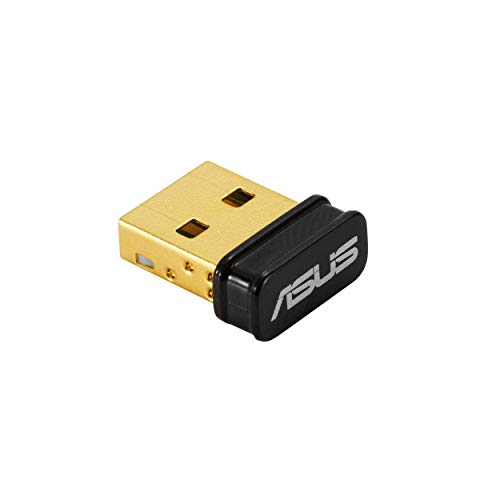
Bluetooth 5.0 for Faster, Further Coverage- Transfer data up to twice as fast as before, and with 4X the range in BLE Wireless Connection, free of limitation - Enables...
Frequently Asked Questions
How to Connect Bluetooth Speaker to Laptop Acer?
Connecting a Bluetooth speaker to an Acer laptop requires enabling Bluetooth, activating pairing mode on the speaker, and selecting it from available devices. Speaker placement affects audio quality, while continuous Bluetooth use impacts battery life.
How to Activate Bluetooth on Acer Laptop?
With a finger on the pulse of Bluetooth troubleshooting, users can activate Bluetooth on Acer laptops by accessing Settings, going to “Bluetooth & devices,” and toggling it on. Acer compatibility requires proper settings configuration.
How to Connect Bluetooth in Laptop Windows 10?
Bluetooth Basics for Windows 10 involve enabling the feature through Settings > Devices. Users can initiate Windows Pairing by clicking “Add Bluetooth device.” Device Troubleshooting may be needed if connection issues occur after activation.
Why My Laptop Cannot Connect to Bluetooth Speaker?
Bluetooth connection failures may result from signal interference from nearby devices, hardware faults in the speaker or laptop’s Bluetooth module, or software conflicts between drivers. Additionally, disabled Bluetooth settings prevent device discovery.