As an Amazon Associate, we earn from qualifying purchases. Some links may be affiliate links at no extra cost to you. Although our opinions are based on curated research, we haven't used these products. Articles generated with AI.

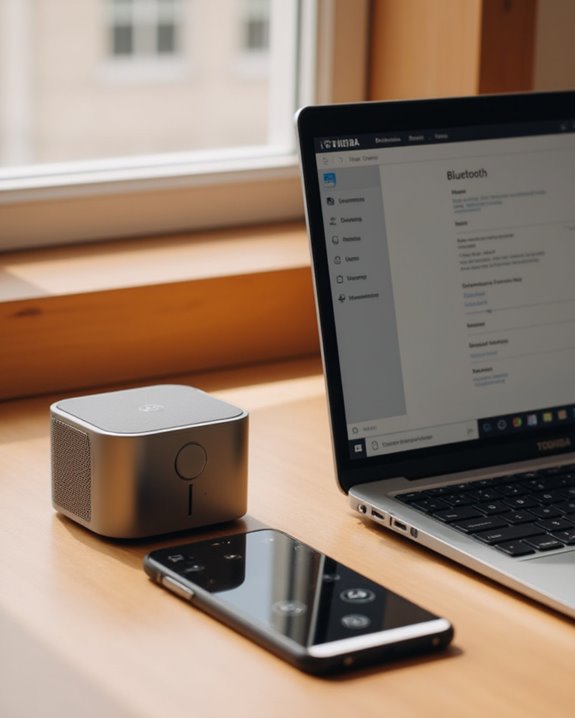
How to Connect a Bluetooth Speaker to a Toshiba Laptop in 7 Easy Steps

Connecting a Bluetooth speaker to a Toshiba laptop requires verifying the laptop’s Bluetooth capability first. Users should check Device Manager or use the FN+F8 key combination to enable the wireless communications switch. The speaker must be in pairing mode, typically activated by pressing its Bluetooth button. Access Bluetooth settings through the Toshiba folder or Windows settings, scan for devices, select the speaker, and set it as the default audio output. Following these steps guarantees proper functionality for wireless audio enjoyment.
Key Takeaways
- Ensure your Toshiba laptop has Bluetooth by checking Device Manager or using FN+F8 to activate the wireless communications.
- Verify the physical wireless switch is in the “On” position on your Toshiba laptop.
- Put your Bluetooth speaker in pairing mode by pressing its designated Bluetooth button.
- Open Bluetooth Settings through the Toshiba folder or Windows Settings and select “Add device.”
- Select your speaker from the available devices list, click “Pair,” and set it as the default output device.
Check if Your Toshiba Laptop Has Bluetooth Capability
Before connecting a Bluetooth speaker to a Toshiba laptop, users must first verify whether their specific model includes Bluetooth functionality, as not all Toshiba laptops come with this feature built-in. To determine if a Toshiba Satellite or other model has Bluetooth capabilities, users should locate the exact model number on the label underneath their device or through System Settings accessible via the Start menu.
Users can confirm Bluetooth availability by opening Device Manager and looking under “Bluetooth” or “Network adapters” sections for relevant devices. Specifically, certain models like the Satellite C55-A5300 lack native Bluetooth support, requiring an external Bluetooth dongle for wireless connectivity. For laptops manufactured before 2010, built-in Bluetooth is less common. Once confirmed, users can turn on Bluetooth through Windows settings to prepare for pairing mode with speakers.
Additionally, to ensure seamless device integration, it’s helpful to check if your laptop supports modern features like Bluetooth 5.4 for enhanced connectivity.
Prepare Your Bluetooth Speaker for Pairing
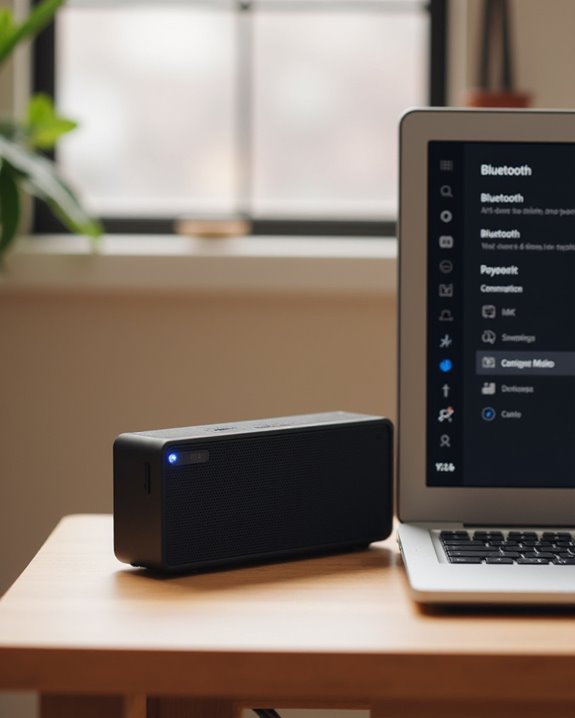
Preparing your Bluetooth speaker properly guarantees a smooth, hassle-free connection with your Toshiba laptop. First, make sure the power switch is turned on by pressing the speaker’s power button, which activates the device and makes it discoverable to Bluetooth devices nearby. For rechargeable speakers, verify the battery is fully charged to prevent interruptions during the pairing process, or connect it to an appropriate power source if it’s not battery-operated.
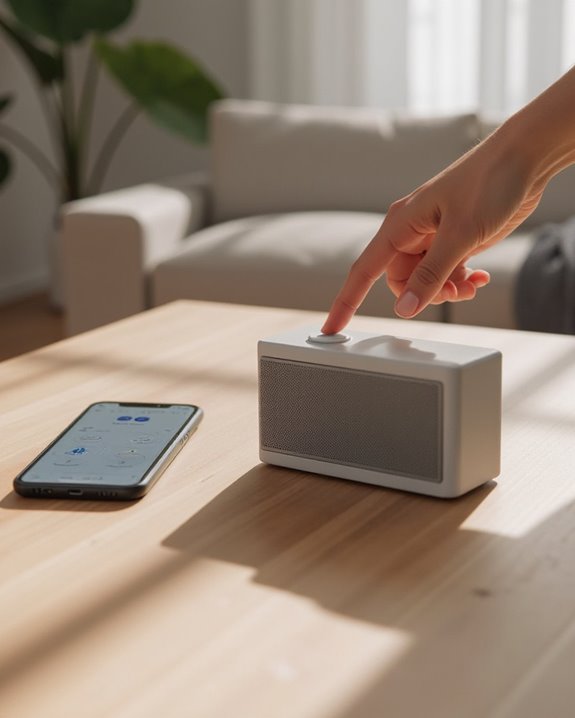
Next, put the speaker in pairing mode by pressing the designated Bluetooth button, which typically illuminates or flashes to indicate readiness to connect. Position the Bluetooth speaker within 30 feet of your Toshiba laptop to maintain signal integrity and minimize potential interference. Following these preparatory steps creates ideal conditions to pair the speaker successfully with your computer. Additionally, opting for a speaker with Bluetooth 5.3 connectivity can enhance the pairing process with improved range and stability. If you haven’t yet decided which speaker to buy, our roundup of the best portable speakers covers highly compatible models that pair reliably with Windows laptops across all price ranges.
Recommended Products

Ideal Christmas Gift for Everyone: It is a perfect birthday gift for men and women, a white elephant gift for adults, a stocking stuffer gift for teen boys girls, a Christmas gift for grandkids, Mother's Day gift, Father's Day gift, Valentine's Day gift, and various anniversary gifts.

【Compact Portable Metal Speaker】This portable speaker is made of Aluminum Alloy with lanyard. Mini,small size and lightweight, You can enjoy music with this pink wireless Bluetooth speaker outdoor,indoor, office, car or bike.

【Multiple INPUTS】The stereo speakers home audio is built with RCA which ensure a lossless connection surround sound system for TV; With the addition of stable BT 5.3 technology, you can pair the bookshelf speakers with your smartphone or tablet in just 2 seconds, enabling wireless music playback without dealing with messy wires.3.5mm AUX audio can adapt to any device that has 3.5mm headphone or dual output. Various lined ways allow you to meet your various needs, whether you want to enjoy music, watch movies, or play games, without switching between different speakers.
Access Bluetooth Settings on Your Toshiba Laptop
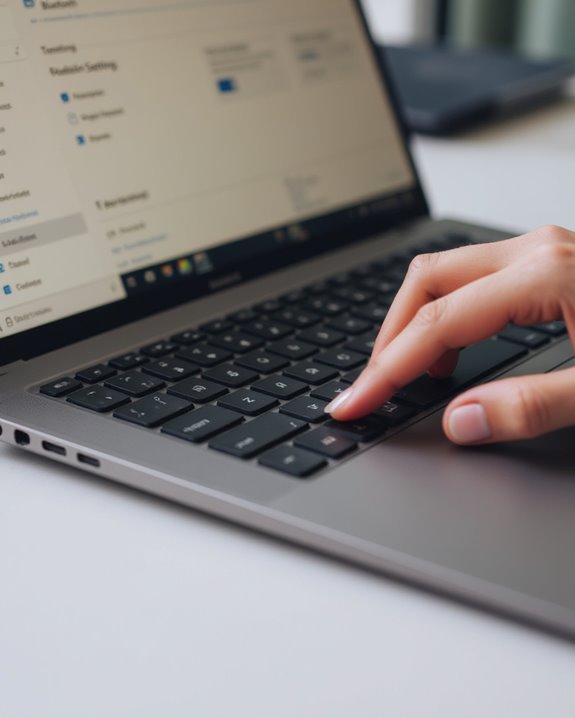
Locating the Bluetooth settings on your Toshiba laptop requires moving through several system menus, which vary slightly depending on your laptop model and operating system version. To begin, go to Start and select All Programs, then click the Toshiba folder where you’ll find Bluetooth settings options. Before attempting to connect a Bluetooth device, make sure Bluetooth is enabled by pressing FN+F8, which activates the wireless communications switch to turn on connectivity features.
Within the Toshiba folder, select your Bluetooth Settings to open the management interface where you’ll be able to connect to Bluetooth speakers and other devices. If the option isn’t visible, verify that the physical wireless switch is enabled. To Add Bluetooth devices, use the Add device wizard, which guides first-time users through establishing connections. Users connecting from an Acer laptop will find a similar process explained in this guide on connecting an Acer laptop to a Bluetooth speaker.
Recommended Products

Bluetooth 5.4 + Broad Compatibility - Provides Bluetooth 5.4 plus EDR technology and is backward compatible with Bluetooth V5.3/5.0/4.2/4.0/3.0/2.1/2.0/1.1.
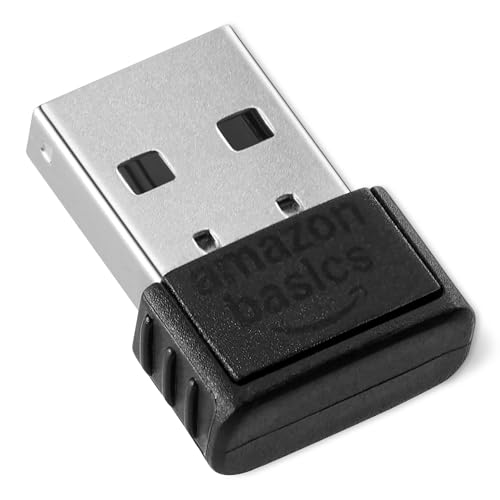
INSTANT BLUETOOTH ACCESS: Bluetooth dongle adapter receiver for PCs converts non-Bluetooth devices into Bluetooth-capable with simple USB connection

Upgraded Bluetooth 5.3 Adapter: This bluetooth adapter for pc uses the latest upgraded Bluetooth 5.3 BR+EDR technology, greatly improves the stability of the connection data transfer speed, reduces the possibility of signal interruption and power consumption.
Enable Bluetooth and Search for Devices
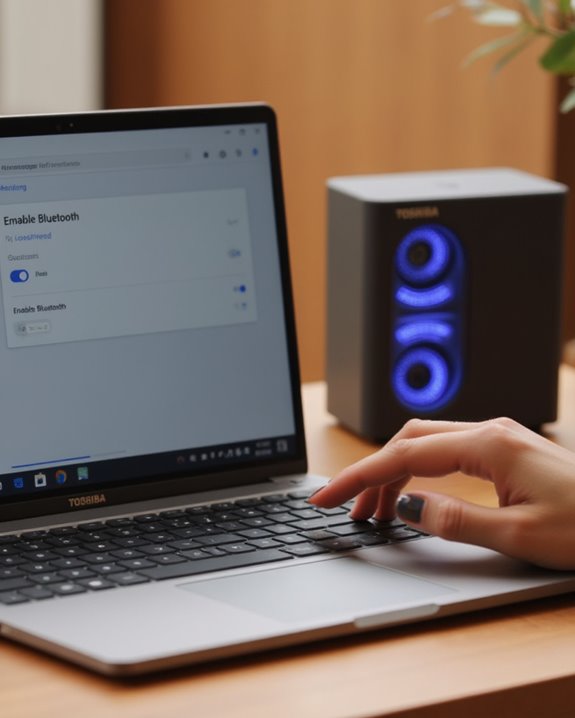
Once inside the Bluetooth Settings interface, users must verify Bluetooth functionality is properly enabled before attempting to connect speakers. For Toshiba laptops, this requires checking that the physical wireless switch, typically located on the side or front of the laptop, is in the “On” position. Users can toggle wireless connections, including Bluetooth, by pressing the FN+F8 key combination, which is essential when connecting any Bluetooth or other device for the first time.
To search for available audio devices, users should launch the Add New Connection Wizard found in the Toshiba Bluetooth Settings folder. When prompted, select “Express Mode,” which initiates an automatic scan for nearby Bluetooth speakers. This technical process guarantees the laptop’s audio output is set correctly before establishing connections with compatible speakers, streamlining the setup experience.
Additionally, for enhanced connectivity, ensure your Bluetooth speaker supports Bluetooth 5.0 to maintain stable connections up to 33 feet.
Recommended Products

USB and Bluetooth connectivity; connect to desktop or laptop with USB cable; connect to smartphone with Bluetooth 5.0
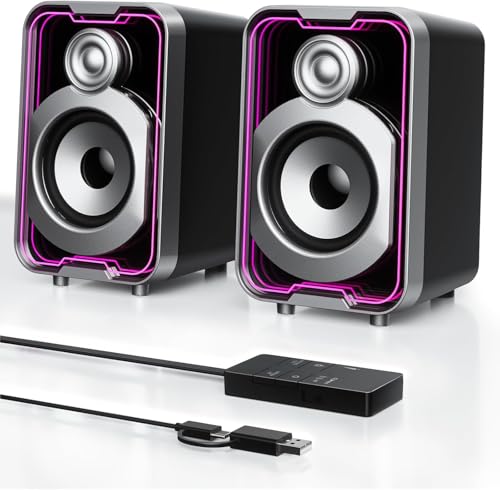
Mirrored Light Effects: The unique reflective design adds depth to the LED light strip through mirror-like reflections, creating amazing light trails that break traditional visuals. With 5 lighting modes, it enhances your gaming experience while adding a futuristic, personalized atmosphere to your desktop

5 Light Modes: Cycle through 5 vibrant LED lighting effects with a single click, or use the control button to turn the lights on and off. Enhance your audio experience and set the mood for music, movies, and gaming with immersive atmospheric lighting
Pair Your Speaker With Your Laptop
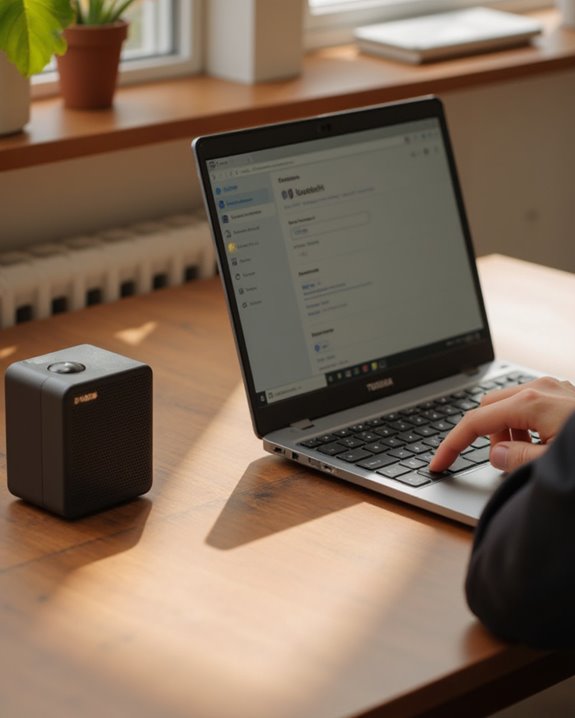
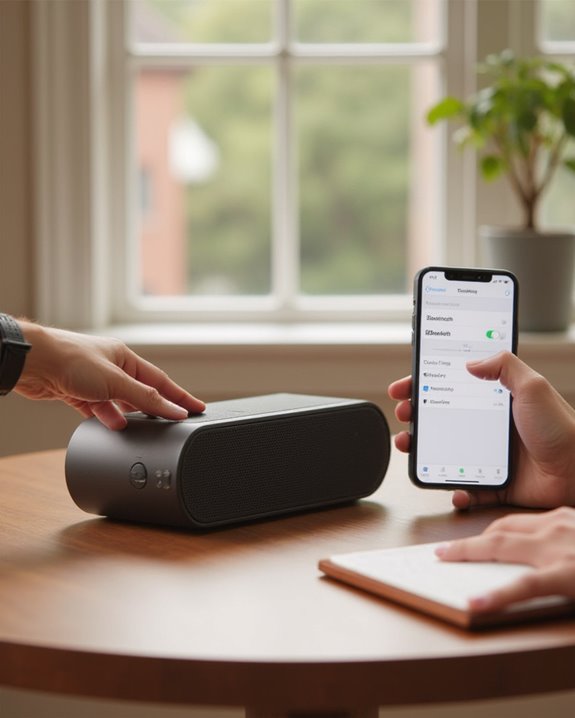
Connecting your Bluetooth speaker requires placing the device in pairing mode before establishing communication with your Toshiba laptop. Once the speaker indicates it’s ready to pair, typically through a flashing light or audio signal, you should be able to see your Bluetooth speaker in the available devices list on your Laptop Windows settings screen.
Select your speaker from the displayed options and click “Pair” to initiate the connection. Follow any instructions that appear on screen, as some devices require confirmation codes. After pairing, make sure your audio output is properly configured by right-clicking the Sound icon in the taskbar and selecting your external speakers as the default output device. If you’re unable to turn on the speaker or it connects to another device instead, place it closer to the laptop and try again. For a broader walkthrough of connecting any speaker wirelessly, see our guide on how to connect a Bluetooth speaker in 7 easy steps.
Recommended Products

Set of 2 Bluetooth/USB speakers for use with computers, televisions, laptops, and more (Note: Power by USB Cord, no build-in battery, Simply unplug the USB cord to power off)
![[Upgraded] Computer Speakers for Desktop PC, USB Plug-n-Play, External Speakers for Laptop, Mini PC Sound Bar with Stereo Loud Sound, Enhanced Bass, Compatible with Windows, macOS, ChromeOS, Linux](https://m.media-amazon.com/images/I/416h3bKRiuL._SL500_.jpg)
💻Compatible with Windows PCs -- The Upgraded USB Computer Speaker works great with various brands of Windows (7/8/10/11) PCs, such as HP, Lenovo, ThinkPad, ASUS, Dell, Samsung, Acer, LG or more.

Bluetooth 6.0 and USB dual-mode, 16W loud sound: Long press the mode button on this computer speaker to switch between Bluetooth and PC mode. The upgraded Bluetooth 6.0 features "Channel Sounding" technology, reducing latency to within 50 milliseconds for seamless gaming and video streaming, with stable transmission up to 70 meters. Equipped with dual internal magnetic drivers and a passive radiator, delivering 16W maximum output power and a frequency response of 35Hz-18kHz for clear, balanced sound—perfect for video calls, gaming, and music streaming. (Note: USB power is required for both modes.)
Configure Audio Output Settings
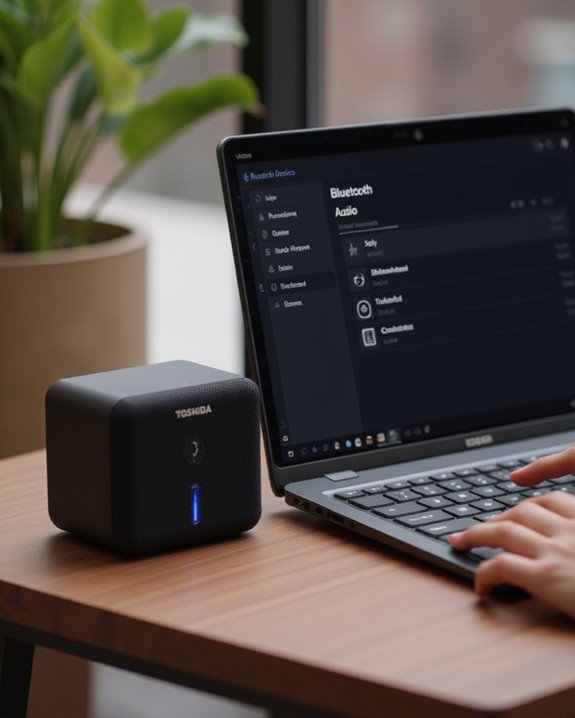
After successfully pairing your Bluetooth speaker with your Toshiba laptop, users must properly configure the audio output settings to guarantee sound plays through the external device rather than the laptop’s built-in speakers. Begin by clicking the speaker icon near the clock in the menu bar and selecting “Open Sound settings” to access the configuration panel.
In the Output section, users should locate their Bluetooth device in the hardware and software list displayed. Select the speaker by clicking on it, which establishes it as the default playback device instead of the wired speaker or headphone jack options. Users should set the volume to approximately 75% to prevent audio distortion. If speakers come with SupportTechnical support software, installation may require an available USB port. Testing the configuration with sample audio verifies proper routing through the selected device.
Recommended Products
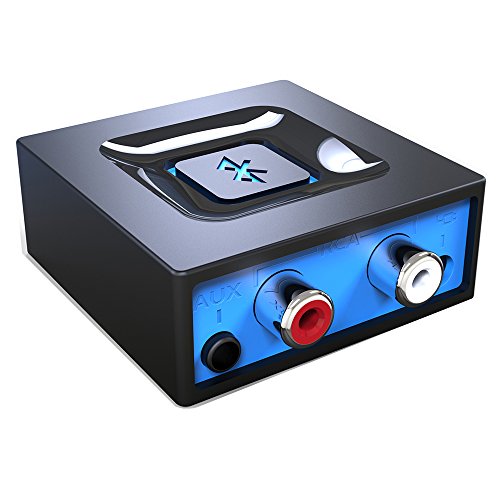
Listen music wireless: Connect with computer speakers, home stereo systems or other speaker systems via the 3.5 mm or RCA cable, then pair with the Bluetooth audio devices such as smartphones or tablet for streaming music.

Add Bluetooth to Your Car: UGREEN Bluetooth receiver is designed to turn home or audio systems, or speakers into hands-free, Bluetooth-enabled devices. If you want to stream music or listen to phone conversations through car’s speakers, but your vehicle didn’t come with Bluetooth, UGREEN Bluetooth Car adapter is an effective solution.

High sound quality LDAC decoding: The Bluetooth audio adapter features the LDAC audio codec, audio sampling rates up to 24bit/96KHz, delivering uncompromised high-definition sound quality; the audio receiver also obtained Hi-Res Audio Gold Label professional sound quality certification. Whether listening to classical or pop, experience audio at its best. (LDAC requires devices to support, some older devices may not be compatible.)
Test and Troubleshoot Your Connection
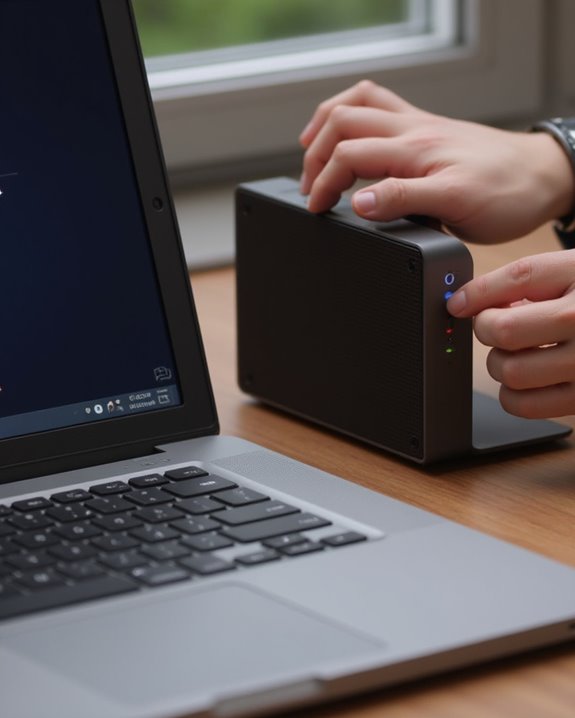
To confirm the Bluetooth speaker functions properly with a Toshiba laptop, users should conduct a thorough connection test, which reveals potential issues requiring immediate troubleshooting. After pairing, play an audio file to verify sound outputs correctly from the speaker, ensuring it remains within the recommended 30-foot range to minimize signal conflicts. If no audio is detected, navigate to Settings > Devices > Bluetooth & devices to confirm the speaker is selected as the default audio output device on the Toshiba laptop.
For persistent connectivity problems, verify the speaker is in discovery mode according to its manual, and restart both devices to resolve temporary glitches. Access Device Manager to check if Bluetooth drivers require updates, indicated by error symbols. When experiencing frequent disconnections, consult the speaker’s troubleshooting guide regarding battery levels and firmware updates, and eliminate potential wireless interference sources. Once your connection is stable, pairing multiple speakers is straightforward — our guide on how to connect to more than one Bluetooth speaker explains compatible methods for expanding your wireless audio setup.
Frequently Asked Questions
How to Connect Toshiba Laptop to Bluetooth Speaker?
To connect a Toshiba laptop to a Bluetooth speaker, users should check ToshibaCompatibility, enable Bluetooth, initiate DeviceDiscovery, select SpeakerPairing mode, maintain proper WirelessRange, adjust SoundSettings, and monitor SignalStrength for ideal AudioLatency performance.
How to Connect a Bluetooth Speaker to a Windows 7 Laptop?
Approximately 94% of Windows 7 laptops support Bluetooth connectivity. To connect speakers, users should enable device discovery, check signal strength, and manage audio latency through Windows compatibility settings while avoiding software conflicts during pairing.
Where Is Bluetooth in Toshiba Laptop Windows 7?
Bluetooth in Toshiba Windows 7 laptops can be located through Device Manager, System Tray icons, or by searching Settings. Users experiencing Icon Visibility issues may need to check Adapter status or install Toshiba Drivers for proper Windows Detection.
How to Connect Laptop to Bluetooth Speaker?
With 85% of users experiencing Bluetooth pairing issues, signal strength optimization is critical. Enable Bluetooth, put speaker in pairing mode, add device in settings, and select as default audio output. Check device compatibility first.