As an Amazon Associate, we earn from qualifying purchases. Some links may be affiliate links at no extra cost to you. Although our opinions are based on curated research, we haven't used these products. Articles generated with AI.

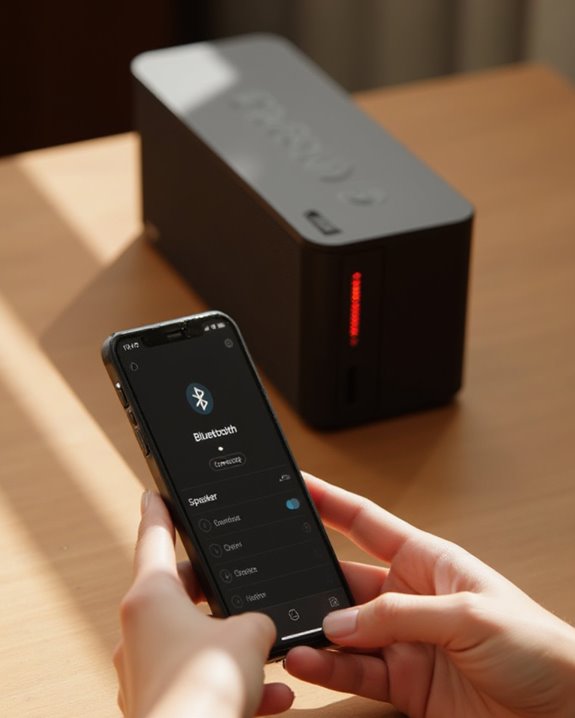
How to Connect to an Already Connected Bluetooth Speaker in 3 Easy Steps

To connect to an already paired Bluetooth speaker, follow these three steps: First, reset the speaker by holding down the Bluetooth or power button for 5-10 seconds until it enters pairing mode, indicated by flashing lights or tones. Second, open Bluetooth settings on your device and disconnect any active connections. Third, select the speaker from available devices to establish a new connection. These techniques effectively override existing connections while maintaining the speaker’s accessibility for immediate use.
Key Takeaways
- Force disconnect existing connections by holding the speaker’s Bluetooth/Mode button for 5-10 seconds.
- Turn off Bluetooth on the currently connected device to free up the speaker for new connections.
- Power cycle the Bluetooth speaker completely to reset its connection status.
- Access your device’s Bluetooth settings to scan for the speaker once it enters pairing mode.
- Disable Bluetooth on unused devices to prevent automatic reconnection conflicts with your preferred connection.
Understanding Bluetooth Connections and Device Limitations
Managing Bluetooth connections requires understanding several fundamental limitations that can affect the pairing process between devices. Most Bluetooth speakers support only one active connection at a time, preventing new devices from pairing until the existing Bluetooth connection is terminated. When powered on, Bluetooth devices typically automatically connect to the last connected device, which can create challenges when attempting to switch to a different source without manual intervention.
Standard Bluetooth hardware lacks diagnostic features to identify which device is already paired without physical testing of each potential connection. Additionally, security protocols prevent forced overrides of existing connections, making it difficult to disconnect an already paired device without access to the original source. Devices like StarTech Bluetooth receivers further complicate matters by lacking disconnect buttons or user interfaces for managing connections. If you need to connect to more than one device simultaneously, read our guide on how to connect to more than one Bluetooth speaker to understand which speakers support multi-device pairing.
Many modern speakers utilize Bluetooth 5.0 technology to enhance range and connectivity options, but they still enforce the single active connection limitation.
Resetting Your Bluetooth Speaker for New Connections
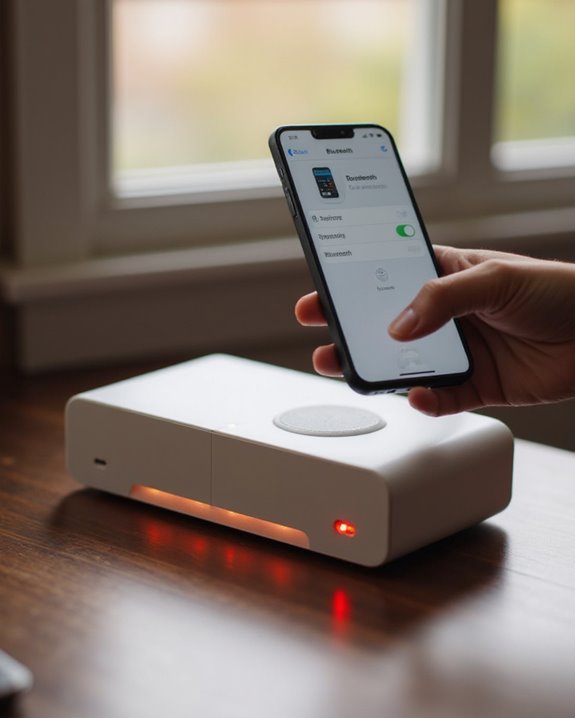
Resetting your Bluetooth speaker represents the most effective solution when facing connection challenges or when changing audio sources. Most speakers offer straightforward reset methods designed to clear existing connections and prepare the device for new pairings.
For many models like the Aukey SK-30, pressing and holding the Mode button or Bluetooth button for several seconds initiates the reset process. Alternatively, users can press and hold the power button for approximately five seconds to force the speaker into pairing mode. ION speakers typically feature a dedicated disconnect option that, when activated, produces an audible tone or visual indicator confirming the reset.
After successfully resetting the speaker, it automatically begins searching for new connections, allowing users to start the pairing process with a different device without interference from previous connections. For a full walkthrough of what happens next, our article on how to connect a Bluetooth speaker covers each step from pairing mode through confirmed connection.
This reset process is particularly useful for speakers with Bluetooth 5.4 connectivity, ensuring seamless integration with new devices.
Recommended Products

OMNIDIRECTIONAL SOUND IN A SMALL PACKAGE: X26M small speakers are designed to deliver balanced, detailed sound in a 360° radius. A built-in amplifier powers the speaker for full sound. It offers a rich sound and an enhanced bass that goes far beyond its size. PAIR TWO SPEAKERS FOR STEREO SOUND : For an immersive music and media experience, you can connect two x26m mini portable speakers to set up stereo sound. Easy click to operate without hassle.

【Exceptional Sound Quality】Tiny bluetooth speakers are compact and designed to be extremely sleek and powerful. These mini bluetooth speakers deliver superb audio performance despite their small size, and have long lasting battery life and advanced bluetooth streaming for the best quality audio.
Practical Workarounds and Connection Management Strategies
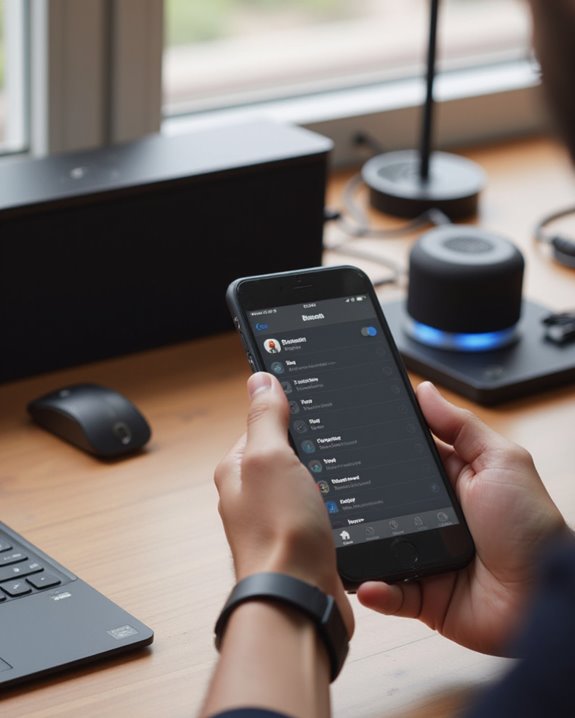
When faced with a Bluetooth speaker that stubbornly remains connected to an unwanted device, users can employ several effective workarounds to establish new connections without resetting the entire system. First, power off the speaker completely, then access Bluetooth settings on your phone or laptop to disconnect any existing connections. Next, hold the pairing button for approximately 5 seconds to force the speaker into discovery mode, which allows it to scan for nearby devices rather than connect automatically to previous devices.
After initiating pairing mode, open the Bluetooth settings on your phone and refresh the list of available devices. Select the speaker when it appears, completing the connection process. To prevent future conflicts, users should disable Bluetooth on unused devices immediately after use, ensuring the speaker remains available for preferred connections.
Recommended Products
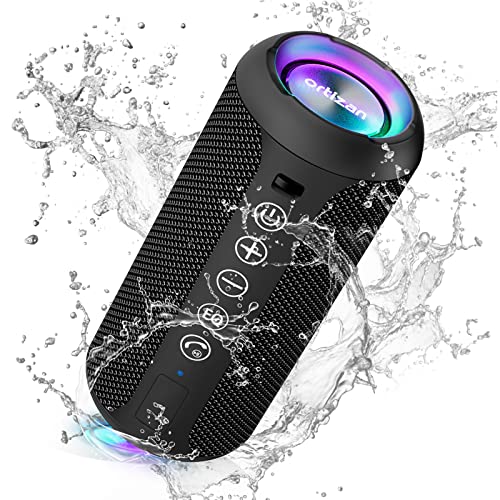
Hi-Fi Stereo Sound and Dual Pairing: Ortizan Bluetooth speaker equips with a 24W(2 x 12W) of stereo audio drivers speaker, an advanced digital signal processor, and two passive radiators for outdoor bass boost, which pumps out crisp treble, detailed mids, and specially enhanced bass at any volume. You can purchase two speakers at the same time to truly enjoy the surround sound of a movie theater by using the Dual Pairing function, which is an auditory experience that's truly unparalleled.

ARE YOU SEARCHING FOR THE BEST SUPER MINI PORTABLE SPEAKER ? We are offering the extremely compact design the best mini speakers bluetooth wireless and the absolute tiny speaker. Our mini portable bluetooth speakers work with any Bluetooth-enabled phone, tablet, or computer.

120W High-Power Indoor and Outdoor Speaker - Provides premium dynamic sound over 4 speakers - 8" woofer, 2" tweeter and two 4" drivers deliver wide-range sound to the front, left and right of the speaker
Frequently Asked Questions
How Do I Connect to an Already Paired Bluetooth Device?
To reconnect to an already paired Bluetooth device, users can maintain signal stability by enabling Bluetooth on their device, managing automatic linking settings, and selecting the paired device from their Bluetooth menu for faster connection speed.
How to Put a Bluetooth Speaker in Pairing Mode?
From beeps to blinks, putting a Bluetooth speaker in pairing mode typically requires a button sequence like holding the power toggle for five seconds. LED signals confirm activation, while some devices need factory reset methods or manual guide consultation.
How to Connect to Bluetooth Speakers at Once?
To connect multiple Bluetooth speakers simultaneously, users need devices supporting multi-speaker setup for group streaming. They should activate pairing mode on each speaker sequentially, enabling stereo integration, wireless ensemble creation, and synchronized audio playback through device aggregation features.
Why Won’t My Phone Find My Bluetooth Speaker?
Studies show obstacles reduce Bluetooth range by 50%. The phone may not detect the speaker due to signal interference, range limitations, device compatibility issues, or because the speaker is already connected to another device.