As an Amazon Associate, we earn from qualifying purchases. Some links may be affiliate links at no extra cost to you. Although our opinions are based on curated research, we haven't used these products. Articles generated with AI.

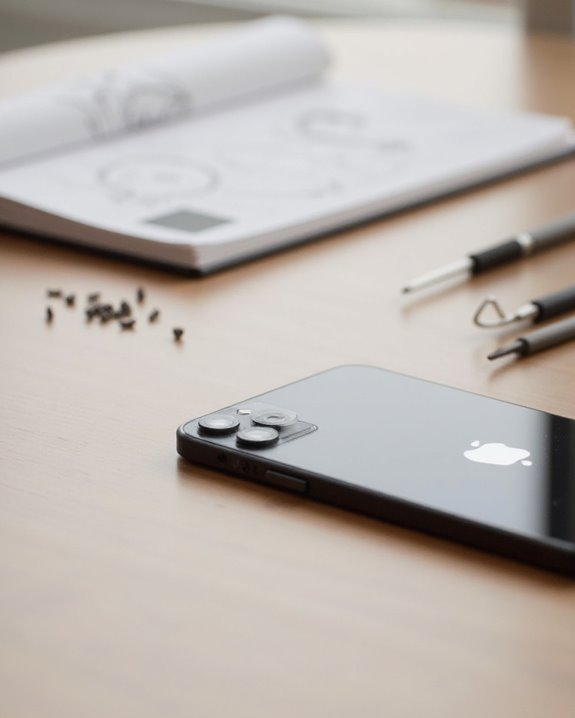
How to Fix Iphone Speakers in 7 Easy Steps

To fix iPhone speakers, start by checking volume settings and cleaning speaker grills with a soft brush or compressed air. Disable Bluetooth and AirPlay connections to make sure audio routes correctly through the device. Turn off Silent Mode and Do Not Disturb features, then restart your iPhone to clear temporary glitches. Update iOS to the latest version for bug fixes, and if problems persist, reset sound settings or contact Apple Support. The following steps provide thorough solutions for most speaker-related issues.
Key Takeaways
- Check the Ringer switch and volume settings to ensure your iPhone isn’t muted or set to low volume.
- Clean speaker grills with a soft-bristled brush and compressed air to remove dust and debris blocking sound.
- Disable Bluetooth connections and AirPlay streaming that might be redirecting sound away from iPhone speakers.
- Turn off Silent Mode and Focus/Do Not Disturb settings that may be suppressing audio notifications.
- Update iOS software and reset device settings to resolve underlying audio bugs affecting speaker performance.
Check and Adjust Volume Settings
The first step in troubleshooting iPhone speaker issues involves examining the basic volume controls, which are often overlooked despite their simplicity. Users should first check the Ringer switch on the side of the device, as an orange indicator signals that the iPhone is muted, preventing sound output. Next, pressing the volume buttons on the side can adjust the volume to maximum levels, with on-screen indicators confirming the current setting.
For persistent sound issues, going to Settings > Sounds & Haptics provides access to the volume slider for Ringer and Alerts. Within these sound settings, enabling the “Change with Buttons” option allows for seamless volume adjustment using physical buttons. After implementing these volume settings adjustments, users should perform a test call to verify proper speaker function.
Recommended Products

CLEAN & REPAIR CHARGING PORT - Compatible with iPhone cleaning kit tool won't get stuck inside and is easy to plug and use. Use the port pick, U-shaped brushes, and port brushes to clean the dirt out of your Phone, Pad, and Type-c port, and keep your phone looking brand new. Charging port cleaners can effectively clean lint, hair, fluff, and dust from your personal device ports

PRO-LEVEL CLEAN FOR HARD-TO-REACH AREAS – Dust and lint hide deep inside charging ports, speaker grills, and earbuds. This cleaning putty and phone cleaning kit removes debris and earwax from devices safely.

✽Compatible ----- For iPhone 11 A2221 A2111 A2223 earpiece speaker replacement.(With Proximity Sensor Flex Cable Not For 11 Pro)Please be sure to correctly identify your model before purchase.
Remove Dirt and Debris From Speaker Grills
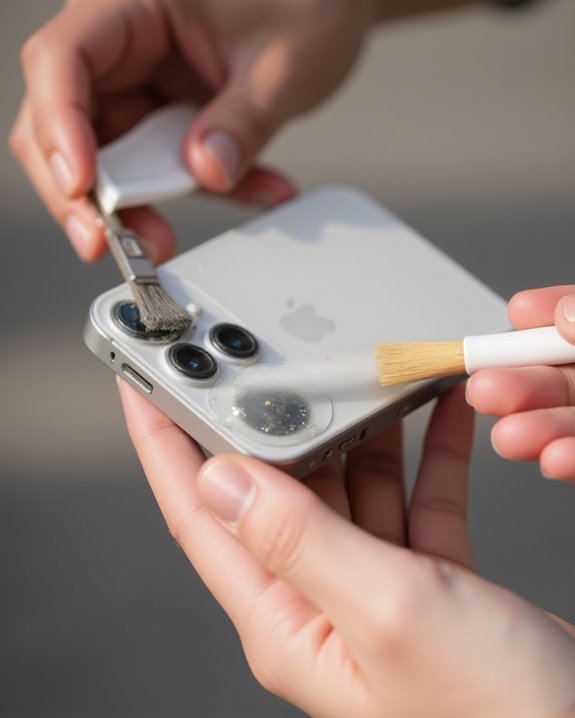
After exploring volume settings, a common hardware problem affecting speaker performance is the simple accumulation of everyday particles. iPhone users should carefully inspect speaker grills under good lighting to identify lint, dirt, or debris that may be blocking sound output.
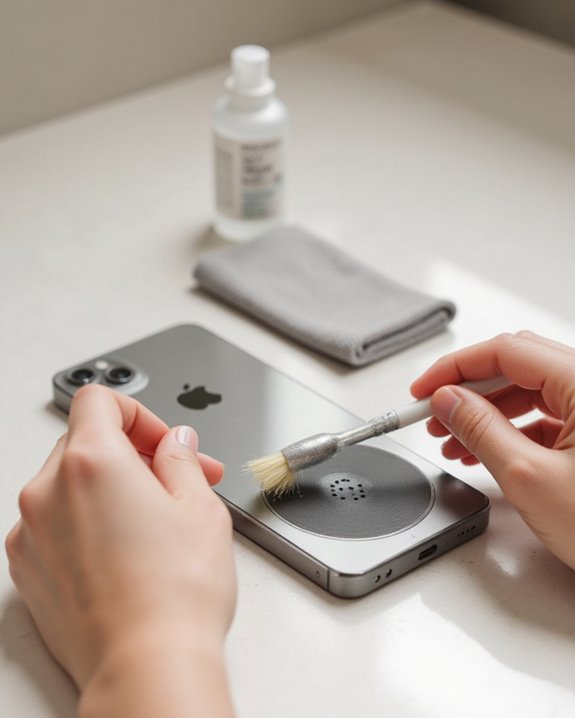
To fix this issue, first remove any screen protector or case to fully access the affected areas. Next, carefully clean the speaker using a soft-bristled brush, such as a makeup brush or electronics tool, with gentle sweeping motions to dislodge particles. For a thorough approach to keeping your phone’s audio components free of debris, the guide on how to clean your phone speaker outlines the right tools and technique. For stubborn debris, controlled bursts of compressed air (40-60 psi) can effectively clear the grills without causing damage. Finally, wipe the area with a microfiber cloth to eliminate any remaining residue. This systematic cleaning approach often resolves iPhone speaker problems immediately, restoring ideal audio performance without requiring professional intervention.
Additionally, to prevent future debris accumulation, consider using a silicone cover for enhanced protection against particles.
Recommended Products

【Deep Cleaning for More Reliable Charging】Dust, lint and tiny debris hidden inside charging ports can interfere with everyday charging and device connections. This versatile charging port cleaning kit is designed for iPhone, Samsung, iPad and other compatible devices, helping clean Lightning and USB-C ports with ease. It also works as a charging port cleaner for iPhone, helping keep connectors clean for reliable daily performance.

32-IN-1 ALL-IN-ONE SET – One compact kit cleans your iPhone, AirPods, iPad, MacBook, keyboard, earbuds and camera lens, so you stop buying separate tools.

【CLEAN & REPAIR CHARGING PORT】This multi-functional iPhone cleaning kit tool, won't get stuck inside, is sturdy and flexible, and easy to plug and use. Use the port hook, U-shaped brushes and port brushes clean the dirt out of your iPhone, iPad, and Type-c port, remove lint, hair, lint, dust, oil, and other contaminants from the charging port, and leave your phone looking brand new. Extend and protect the life of your beloved Apple products. (Compatible with Type-c charging port)
Disable Bluetooth and AirPlay Connections
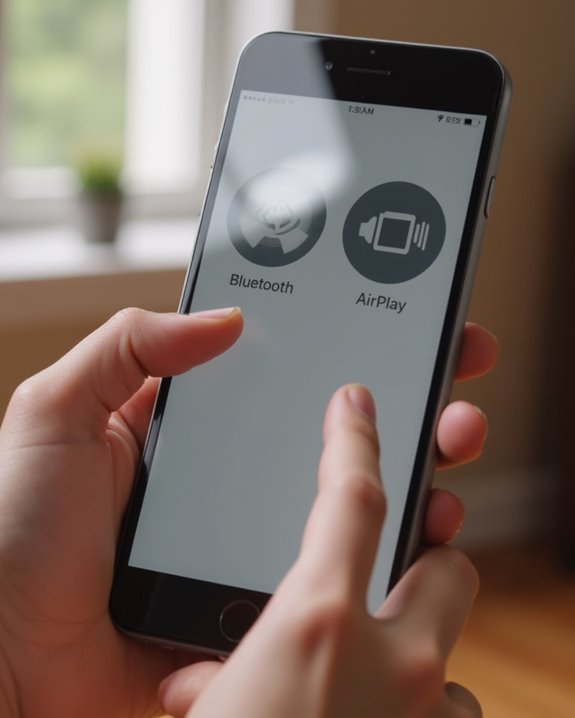
Unintentionally active Bluetooth and AirPlay connections frequently redirect audio away from iPhone speakers, causing users to mistakenly believe their device has speaker damage. To troubleshoot this issue, users should check if their iPhone is sending audio to another device. To turn off Bluetooth, go to Settings and tap the Bluetooth icon to toggle it to the off position, preventing external devices from intercepting audio output.
For AirPlay connections, users should access the Control Center by swiping down from the upper-right corner of the screen. During media playback, the AirPlay icon indicates if the iPhone is sending the sound elsewhere. Tapping this icon allows users to select their iPhone as the output device, immediately redirecting audio back to the internal speaker. Regular monitoring of these connections helps prevent common speaker issues caused by inadvertent audio routing. Additionally, understanding AirPlay 2 compatibility can help users avoid conflicts when streaming to external speakers.
Recommended Products

【Enjoy Wireless Streaming Music】This car Bluetooth adapter can be connected to non-Bluetooth car audio systems, home stereos, speakers, wired headphones via the 3.5mm AUX adapter; And equipped with a Bluetooth 5.0 chip for stable connection / fast transmission / wide signal range. Just pair it with your phone and start listening to your favorite music!
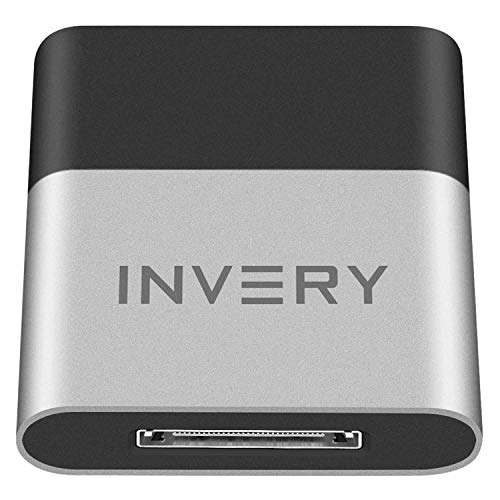
[UPGRADE BLUETOOTH FOR YOUR BOSE Sounddock]: Using DockLinQ to add bluetooth for your Original Bose SoundDock, Bose SoundDock I, SoundDock II, Portable SoundDock, SoundDock 10 and other 30 pin Music Docking Stations. Plug, Pair, and Play, no more actions, rescue your old docks, enjoy music wirelessly. Support any version of iOS and Andriod devices including iPhone, iPad, Samsung Galaxy, Google Pixel, LG, HTC etc.

The Ultimate Smarter Copilot: Stay on Top of Your Driving- The 3A magic link CarPlay box control everything with a word, Or a touch, Or a twist. Save your 40% of time by quick auto conn and seamless operation, such as navigation, music playing, Siri assistant, phone calls, radio etc(Our Carplay Only Compatible with wired Apple CarPlay Car systems)
Turn Off Silent Mode and Do Not Disturb
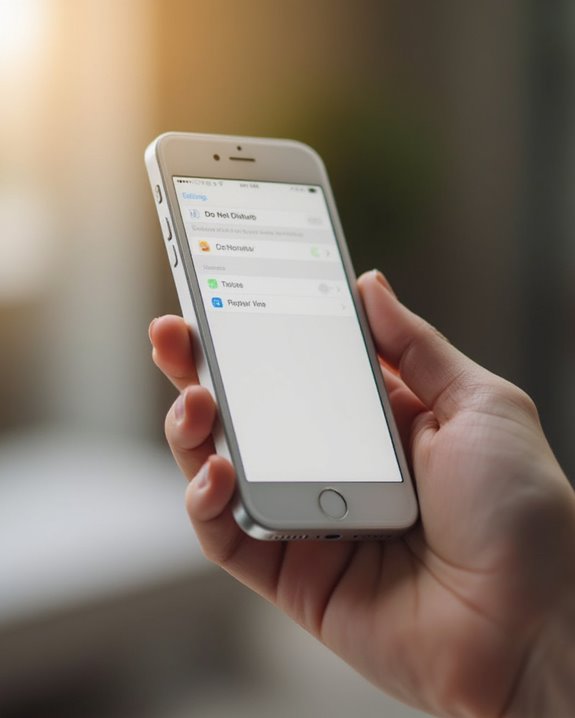
Silent mode and Do Not Disturb settings can create apparent speaker failures even when hardware is functioning perfectly. First, check the Silent Mode switch (also called the Ringer switch) located on the side of the iPhone, ensuring no orange indicator is visible, as this silences all iPhone sound when activated.
Next, users who can’t hear anything should verify Focus settings might be blocking audio. Swipe down from the top right corner of the screen to access Control Center, then check if Do Not Disturb is enabled. Make sure to tap the Focus icon and disable any active modes. For thorough verification, navigate to Settings > Focus and confirm all modes are turned off, as these can prevent the iPhone’s sound system from delivering alerts and ringtones through speakers. This step often resolves situations where speakers appear non-functional.
Additionally, if Bluetooth connections are active, they might be routing audio away from the iPhone’s internal speakers, so check and disconnect any paired devices to ensure sound plays correctly.
Recommended Products

Compatibility: The Volume Button Replacement Compatible with iPhone 13, (Models: A2631, A2633, A2634, A2635, A2482). Please check the Model Number of your device before purchasing this Item.

Compatibility: The Volume Button Replacement Compatible with iPhone 12PROMAX, (Models: A2342, A2410, A2412, A2411). Please check the Model Number of your device before purchasing this Item.

Compatibility The Volume Button Replacement ONLY Suitable for iPhone 11, (Models: A2111, A2223, A2221) NOT FOR OTHERS, Please confirm your mobile phone model before purchasing.
Restart Your Iphone to Clear Software Glitches
Restarting your iPhone offers a quick, effective solution for clearing temporary software glitches that affect speaker performance. When your iPhone speaker isn’t working properly, producing static noise, or delivering inconsistent volume, a system refresh can resolve these minor issues by clearing corrupted data in the audio system.
For iPhone 8 or newer models, perform this troubleshooting step by pressing volume up, then volume down, and finally holding the side button until the Apple logo appears—typically taking 10-15 seconds. After your device completes the restart process, immediately test your speaker functionality by playing audio or making a call. This simple fix requires no tools and takes less than a minute, making it an essential first step before attempting more complex solutions or installing software updates.
Recommended Products

Phone Cleaning Kit: Designed as a top-tier iPhone cleaning kit and charging port cleaning kit, Also compatible with Android and Samsung cell phones. Equipped with specialized tools to clean USB-C/Type-C/Lightning charging ports, speakers, lenses, etc. Comes with a dedicated cleaner and brush for the screen
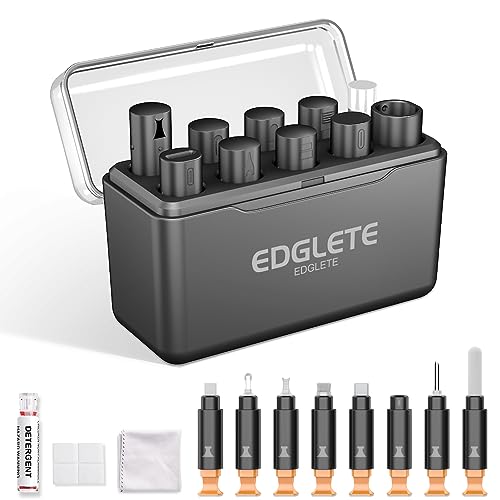
Iphone Cleaning Kit For Charging Port - The port hook, steel "U" brush and port wipe in the iPhone cleaning kit effectively clean compatible with iPhone, Android, iPad and tablet USB C port! Easily clean stains, hair, dust, fuzz, rust, oxidization and other contaminants from charging ports. Extend the life of your cell phone and electronic devices with our iPhone charging port cleaning tool
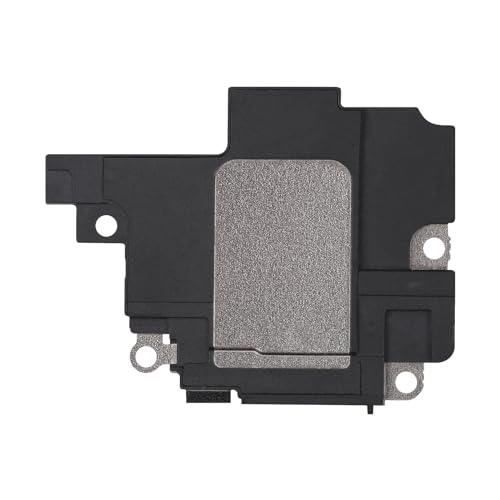
Compatible: The Loudspeaker Buzzer replacement Compatible with iPhone 11 - Model: A2111, A2223, A2221 and for iPhone XR - Model: A1984, A2105, A2106, A2108. Please find the mobile phone model in the mobile phone settings.
Update Ios to the Latest Version
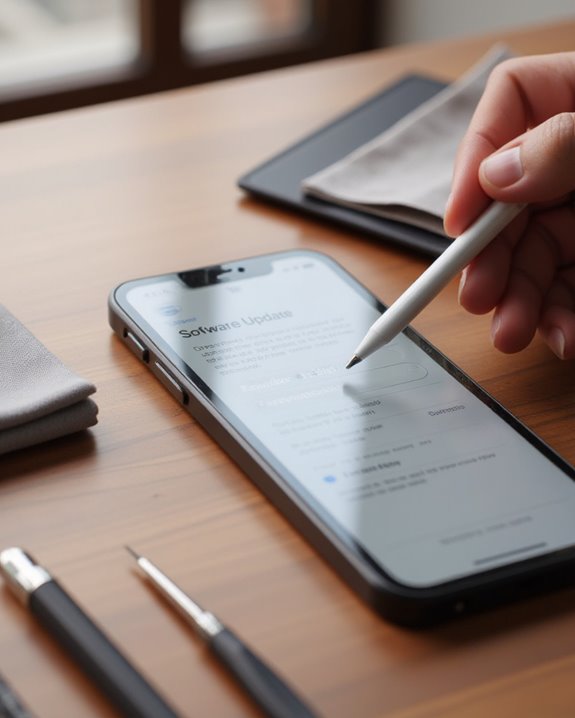
Keeping iOS up to date represents one of the most effective solutions for resolving speaker problems on iPhones, particularly when software bugs interfere with audio performance. When experiencing the frustrating “iPhone Speaker Not Working” issue, users should navigate to Settings > General > Software Update to check if an update is available. If so, they should tap Download and Install to apply the latest operating system version.
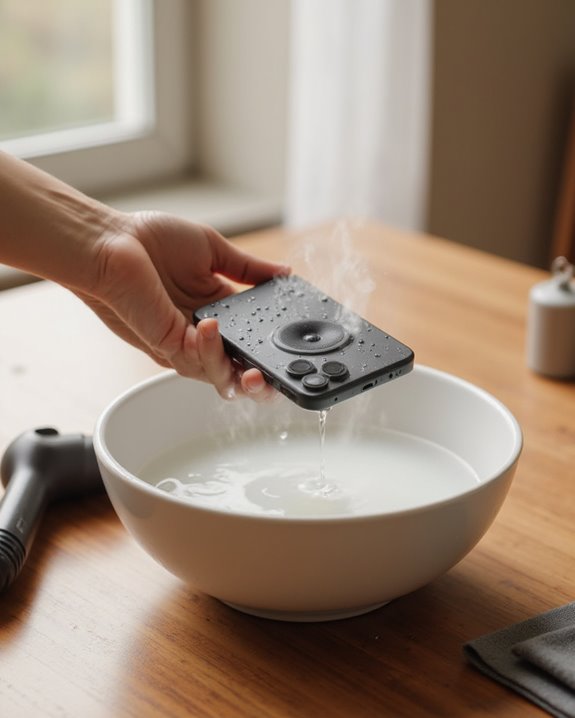
Apple regularly releases patches targeting software glitch issues affecting audio components, especially in iPhone 8 and newer models. These updates specifically address distortion problems and cases where speakers stop working properly during calls. After completing the update process, users should test sound quality by playing music or making a test call. If issues persist after updating iOS, additional troubleshooting steps may be necessary to resolve the underlying speaker malfunction. In cases where water damage is the root cause of persistent speaker issues, learning how to get water out of your iPhone speaker can help address moisture-related distortion before attempting a full reset.
Reset Sound Settings and Contact Apple Support
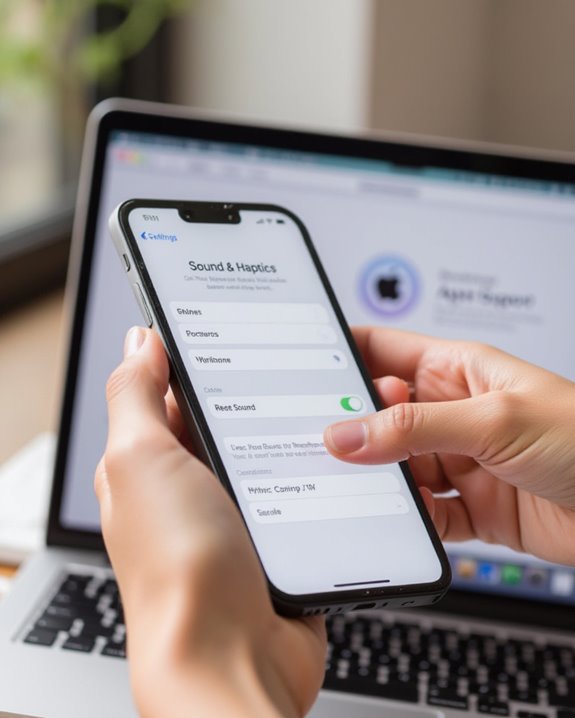
When software updates fail to solve iPhone speaker issues, resetting sound settings offers an effective next step for resolving persistent audio problems. Users experiencing a problem with their iPhone speaker can navigate to Settings > General > Reset, where selecting “Reset All Settings” will restore default audio configurations without erasing personal data. This simple step often resolves software-related glitches affecting sound quality.
After completing the reset, users should test their iPhone’s speaker by making a call or playing media. If the problem persists, the next step involves contacting Apple Support at 1-800-MY-APPLE or visiting an Apple Store. When seeking professional assistance, customers should provide specific details about their device model and audio symptoms to help technicians diagnose whether the speaker is not working due to hardware damage, which may require professional repair services.
Frequently Asked Questions
How to Fix Iphone 7 Speaker Problem?
iPhone 7 speaker problems often stem from software glitches, hardware defects, water damage, battery interference, or case obstructions. Users should restart devices, check settings, clean grilles, update iOS, and examine usage patterns for resolution.
How Do I Fix the Speaker on My Iphone?
Speaker troubleshooting involves checking volume adjustment, connection checks for Bluetooth devices, and cleaning the grill. Address software glitches through restarting, update firmware via iOS updates, and inspect for audio distortion causes.
How Do You Reset an Iphone Speaker?
The iPhone Speaker Reset Process involves a Device Reboot by pressing volume up, down, then holding the side button. This Audio Reset procedure effectively reinitializes speaker functionality without requiring specialized Speaker Refresh methods or equipment.
How to Unclog Iphone Speakers?
Like liberating music from a muffled cave, iPhone speaker unclogging requires gentle dust extraction through air blasting, brush cleaning, or the tape method. For effective debris clearing and lint removal, maintain ports with careful vacuum use for sound unblocking.