As an Amazon Associate, we earn from qualifying purchases. Some links may be affiliate links at no extra cost to you. Although our opinions are based on curated research, we haven't used these products. Articles generated with AI.

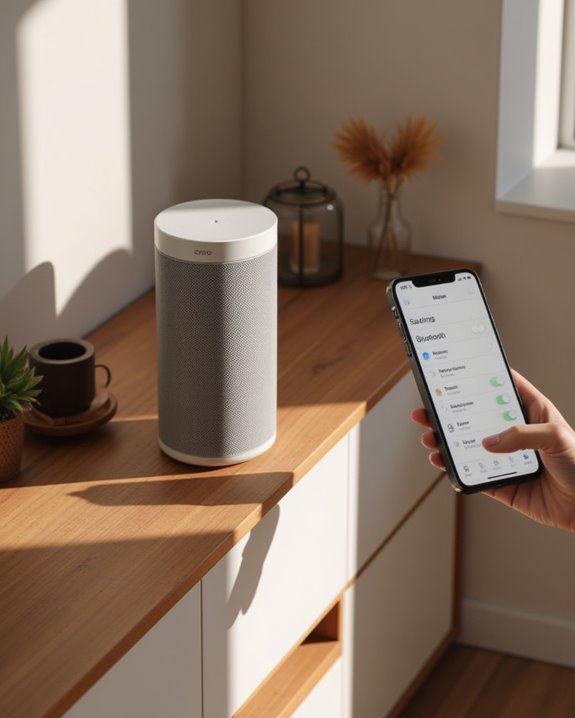
How to Connect to a Sonos Speaker via Bluetooth in 5 Steps

Connecting to a Sonos speaker via Bluetooth requires a compatible model (Move, Roam, Era 100, or Era 300). First, complete initial Wi-Fi setup using the Sonos app. Next, press the Bluetooth button on the speaker until the LED turns blue. Then, open Bluetooth settings on your device and select the Sonos speaker from available devices. Once paired, the LED will glow solid blue, indicating successful connection. The steps below provide additional details for troubleshooting common connection issues.
Key Takeaways
- Confirm your Sonos speaker supports Bluetooth (only Move, Roam, Era 100, and Era 300 models do).
- Press the Bluetooth button on your speaker once to activate Bluetooth mode.
- Look for the blue LED light and listen for the confirmation chime sound.
- Open Bluetooth settings on your device and select the Sonos speaker from the list.
- Successful pairing is indicated by a solid blue LED and connection chime.
Understanding Bluetooth Compatibility Across Sonos Speakers
Confusion often surrounds Bluetooth capabilities within the Sonos speaker lineup, as this feature is not universally available across all models. Only specific Sonos speakers support direct Bluetooth connectivity, including the portable Sonos Move and Roam models, as well as the newer Era 100. Users attempting to pair Bluetooth devices with models like the Sonos Five will experience trouble connecting, as these speakers lack Bluetooth input functionality entirely. For a full overview of the Sonos ecosystem and what sets it apart from other wireless speaker brands, see our guide on what Sonos is and how its multi-room audio system works.
When setting up a Sonos speaker for Bluetooth streaming, verifying the model’s compatibility is an essential first step. The Move and Roam were specifically designed with mobility in mind, incorporating Bluetooth technology for situations where Wi-Fi networks are unavailable. Consumers should always check official product specifications before purchasing if paired Bluetooth connectivity is a required feature for their audio setup. If you want a broader overview of the pairing process before diving into Sonos-specific steps, our guide on how to connect a Bluetooth speaker walks through the universal fundamentals.
Additionally, the Sonos Era 300 supports Bluetooth connectivity as part of its multiple options, making it a great choice for versatile audio setups.
Setting Up Your Sonos Speaker on Wi-Fi First
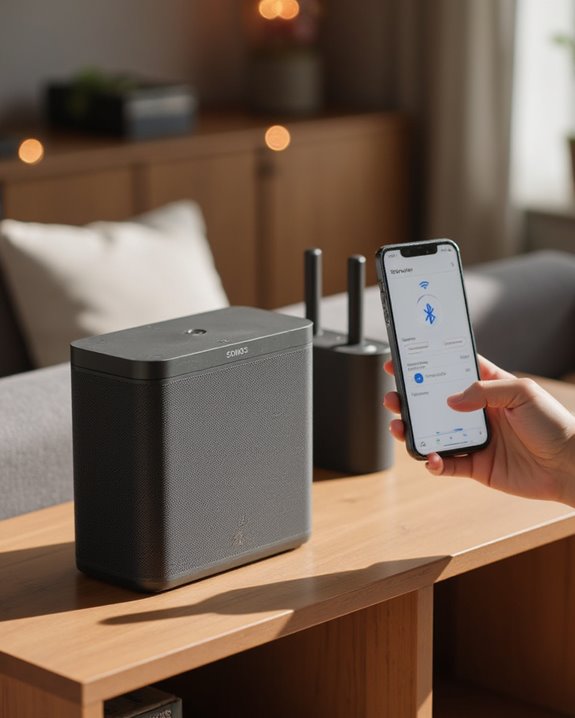
Even Bluetooth-capable Sonos speakers require an initial Wi-Fi setup before Bluetooth functionality becomes available, establishing the foundation for your wireless audio experience. To set up your Sonos, download the Sonos app on your mobile device, whether you use iOS or Android devices, and make sure the device connects to your home Wi-Fi network.
After connecting your Sonos speaker to power, open the app and select “Add Product” to begin the detection process. The app guides users through creating a Sonos account and connecting the speaker to Wi-Fi through following steps displayed on screen. This initial configuration is essential for all models, including the Move, which offers Bluetooth capabilities after Wi-Fi setup completes. Once integrated into your Sonos system, compatible devices are ready for Bluetooth connections when needed. This setup also unlocks features like Trueplay tuning to automatically optimize sound for your room’s acoustics.
Recommended Products
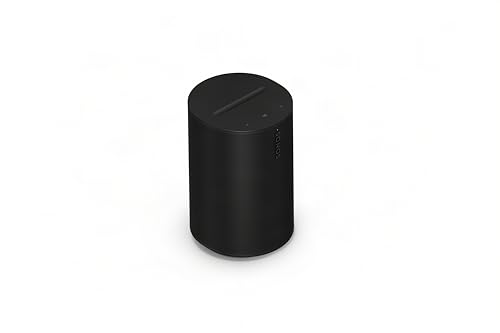
Dual angled tweeters and a powerful midwoofer deliver rich, balanced stereo sound with deep bass.

Enrich your entertainment experience with vibrant bass, crystal clear dialogue, and a panoramic soundstage.

Powered by a 47% faster processor, the next-gen dual-tweeter acoustic architecture produces detailed stereo separation while a 25% larger midwoofer deepens the bass.¹
Activating Bluetooth Mode on Compatible Models
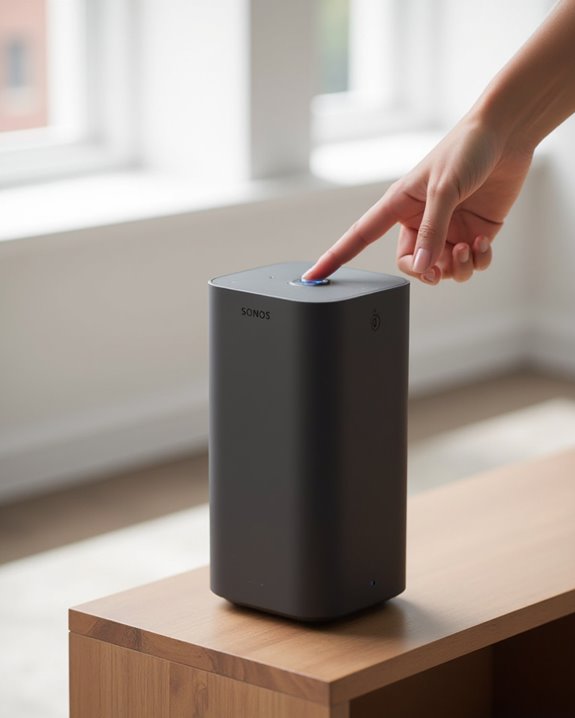
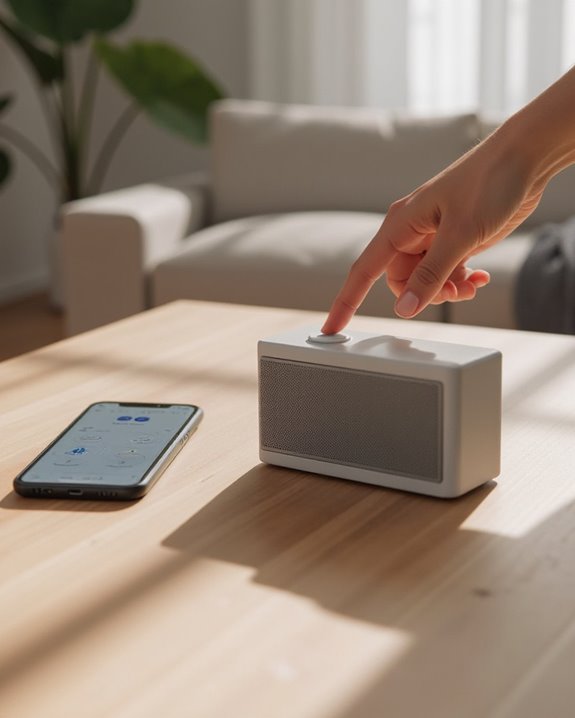
Switching a Sonos speaker to Bluetooth mode requires accessing the dedicated Bluetooth control on compatible models, particularly the Sonos Move. The Bluetooth button is strategically positioned on the back of compatible Sonos speakers, located between the Power and Join buttons, allowing users to switch from Wi-Fi to Bluetooth operation with a single press.
After initial setup through the Sonos S1 Controller app, pressing this button once activates Bluetooth mode, indicated by a chime sound and blue LED illumination. This functionality allows you to connect to any previously paired audio device without requiring the Sonos app. When activated, the product disconnects from Wi-Fi networks, meaning previously connected Sonos speakers can no longer be grouped together, and the device becomes invisible within the Sonos app until returned to Wi-Fi mode.
This Bluetooth functionality enhances the overall versatility of Sonos products, which are praised for their multi-room audio features.
Recommended Products
Designed for use with Sonos Move Bluetooth Speaker .

The new acoustic architecture replaces Move's single tweeter with two, unlocking a higher-fidelity stereo soundstage with crisp vocals and detailed instruments. With deep, dynamic bass powered by the precision-tuned woofer, you'll feel the emotional charge of a live performance.

【Wide Compatibility】Third party replacement charging dock, compatible with Sonos Move first and second generation speakers (speakers not included!).
Pairing Your Device With Your Sonos Speaker
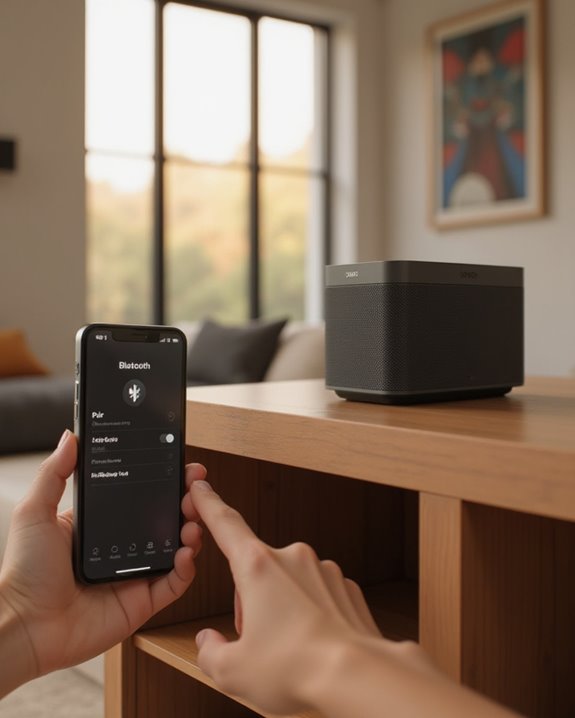
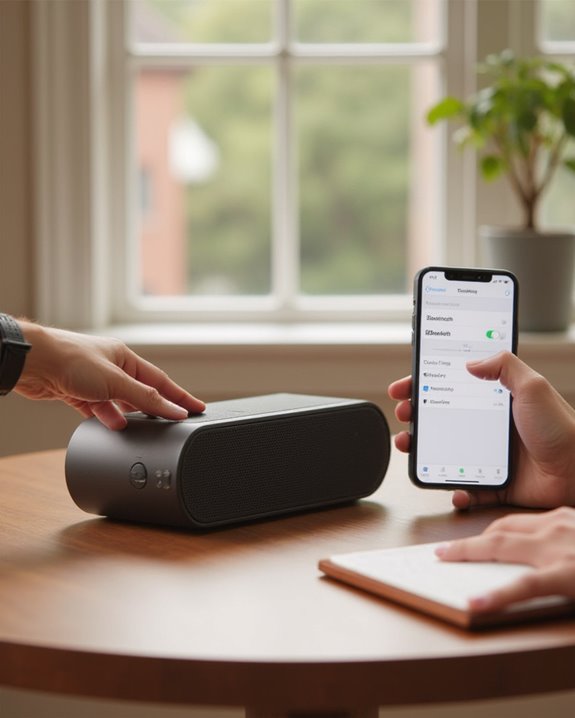
Once the Bluetooth mode is activated on a compatible Sonos speaker, pairing a device becomes the essential next step in establishing a wireless audio connection. Sonos owners should make sure their device’s Bluetooth setting is enabled, then select the Sonos speaker from the available devices list. If “Product not found” appears, verify that the speaker’s LED is flashing blue, indicating it’s in pairing mode.
The speaker will chime and display a solid blue LED when successfully paired, automatically remembering up to six devices it was connected to previously. If help is needed, Sonos technicians can help over the phone with troubleshooting specific models. Many users also find answers with other Sonos community members online when facing connection difficulties. You may also find it helpful to connect the IKEA Sonos speaker — our guide on how to connect IKEA Sonos speaker to Bluetooth covers the pairing steps for that variant. Following these steps guarantees a reliable wireless audio experience with minimal setup time.
Recommended Products
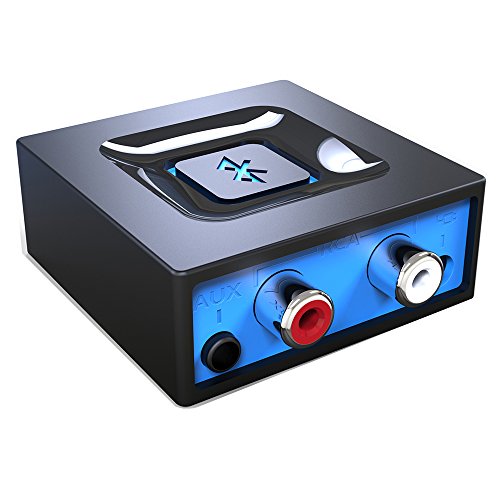
Listen music wireless: Connect with computer speakers, home stereo systems or other speaker systems via the 3.5 mm or RCA cable, then pair with the Bluetooth audio devices such as smartphones or tablet for streaming music.

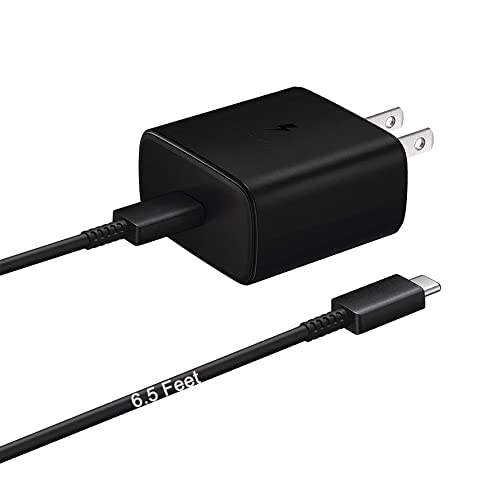
【In The Box】- 1*45W Wall PD Charge Block, 1*6.6Ft (2M) C to C Power Cord.

Compatibility: Sonos Move Gen 2nd and 1st Wireless Portable Bluetooth Speaker
Switching Between Bluetooth and Wi-Fi Modes
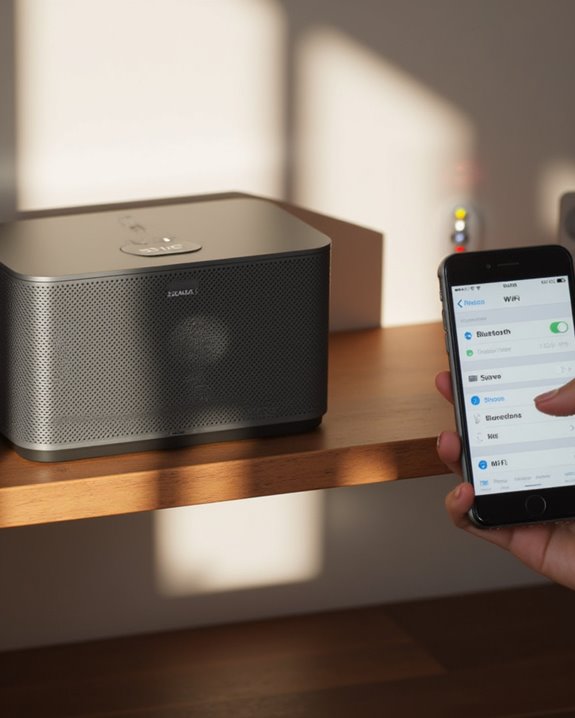
After successfully pairing your device, many Sonos users need to understand how to navigate between connection modes for best functionality. The Sonos Move, known under a different name in the new system, switches to Bluetooth mode with a single press of the dedicated button on the rear panel, triggering a blue LED indicator and a chime. Product features like speaker grouping become unavailable while in Bluetooth mode, as the device disconnects from the Sonos app.
To return to Wi-Fi mode, owners in our Sonos community simply press the Bluetooth button again, causing the LED to flash white during reconnection. Users looking to pair a different type of wireless speaker — such as a Bose model — can follow our step-by-step guide on how to connect a Bose Bluetooth speaker for a comparable setup experience. Users can ask questions and find answers about connection issues through live chat support or by sending an E-mail address to customer service. The LED indicator will remain solid white once Wi-Fi connection is complete.
Recommended Products

All-new Sonos Move - Get brilliant sound anywhere with the all-new Sonos Move, the durable, battery-powered smart speaker for outdoor and indoor listening.
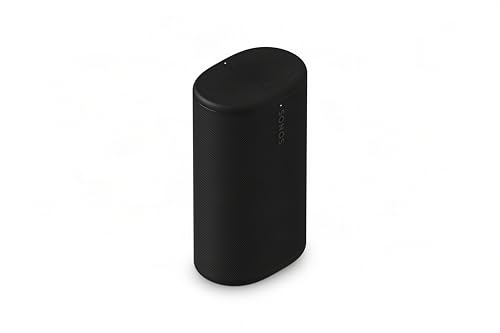
Delivers seriously big stereo sound and deep bass in a take-anywhere design

The new acoustic architecture replaces Move's single tweeter with two, unlocking a higher-fidelity stereo soundstage with crisp vocals and detailed instruments. With deep, dynamic bass powered by the precision-tuned woofer, you'll feel the emotional charge of a live performance.
Frequently Asked Questions
How to Connect to Sonos Speaker via Bluetooth?
Like sailors seeking a harbor, users navigate the Bluetooth Range for Device Linking. Press the Bluetooth button until LEDs flash blue, find the Sonos in device settings, and connect for best Audio Quality within Connection Stability parameters.
Can I Connect to Sonos 5 via Bluetooth?
Bluetooth Feasibility for Sonos Five is non-existent. The speaker lacks Bluetooth Compatibility despite Connection Myths suggesting otherwise. Users seeking Wireless Options should utilize Wi-Fi instead, as confirmed by User Feedback and Compatibility Check documentation.
How to Connect to Sonos Speaker Play:5?
Looking to connect your Sonos Play:5? WiFi Setup is required, not Bluetooth. Network Pairing occurs through App Configuration in the Sonos app, where Device Integration, Audio Optimization, Firmware Update, and Multiroom Sync options become available.
How to Connect to Sonos Speaker Without App?
Connecting to Sonos speakers without the app requires initial WiFi setup. For most models, alternative routing includes Ethernet connection or network linking. Only Move and Roam support offline configuration through manual Bluetooth pairing after initial wired access.